Module 3 Formstorming

Weekly Activity Template

student name put a description here or you will lose grades


Project 3


Module 3

PLACEHOLDER TEXT, put a description here or you will lose grades

Activity 1
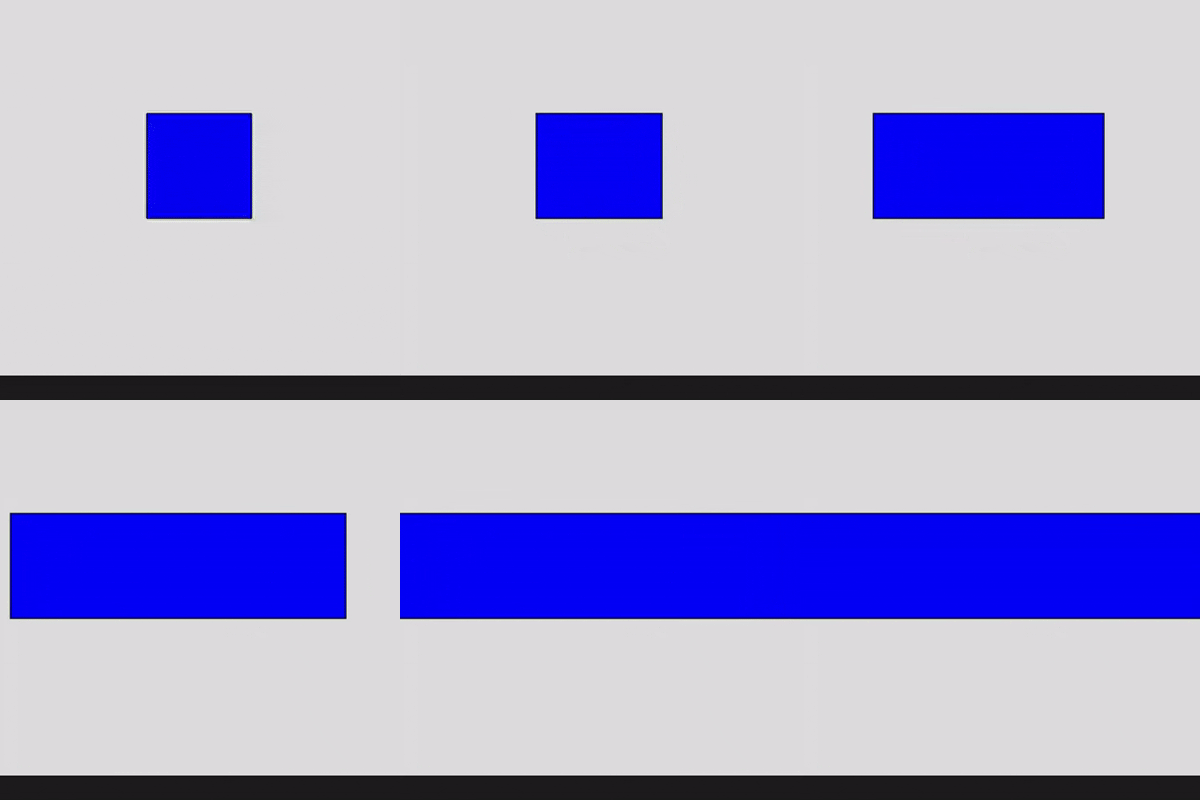
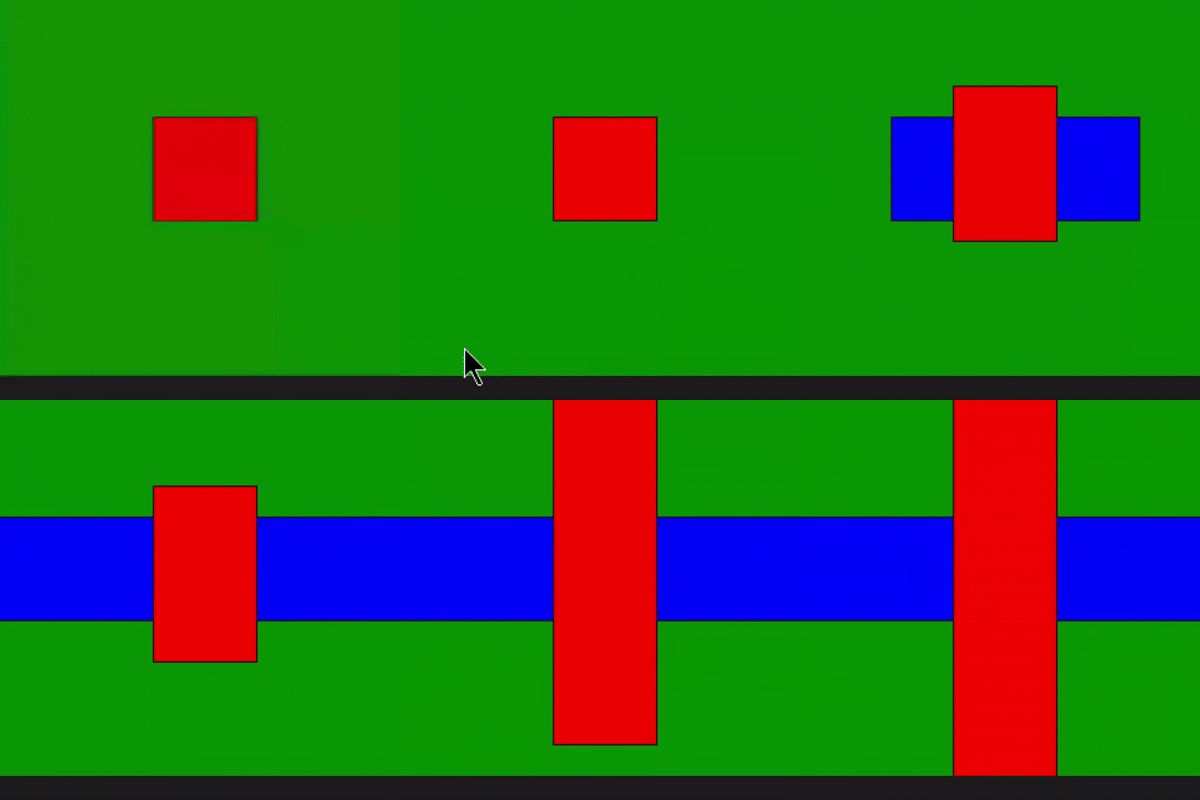
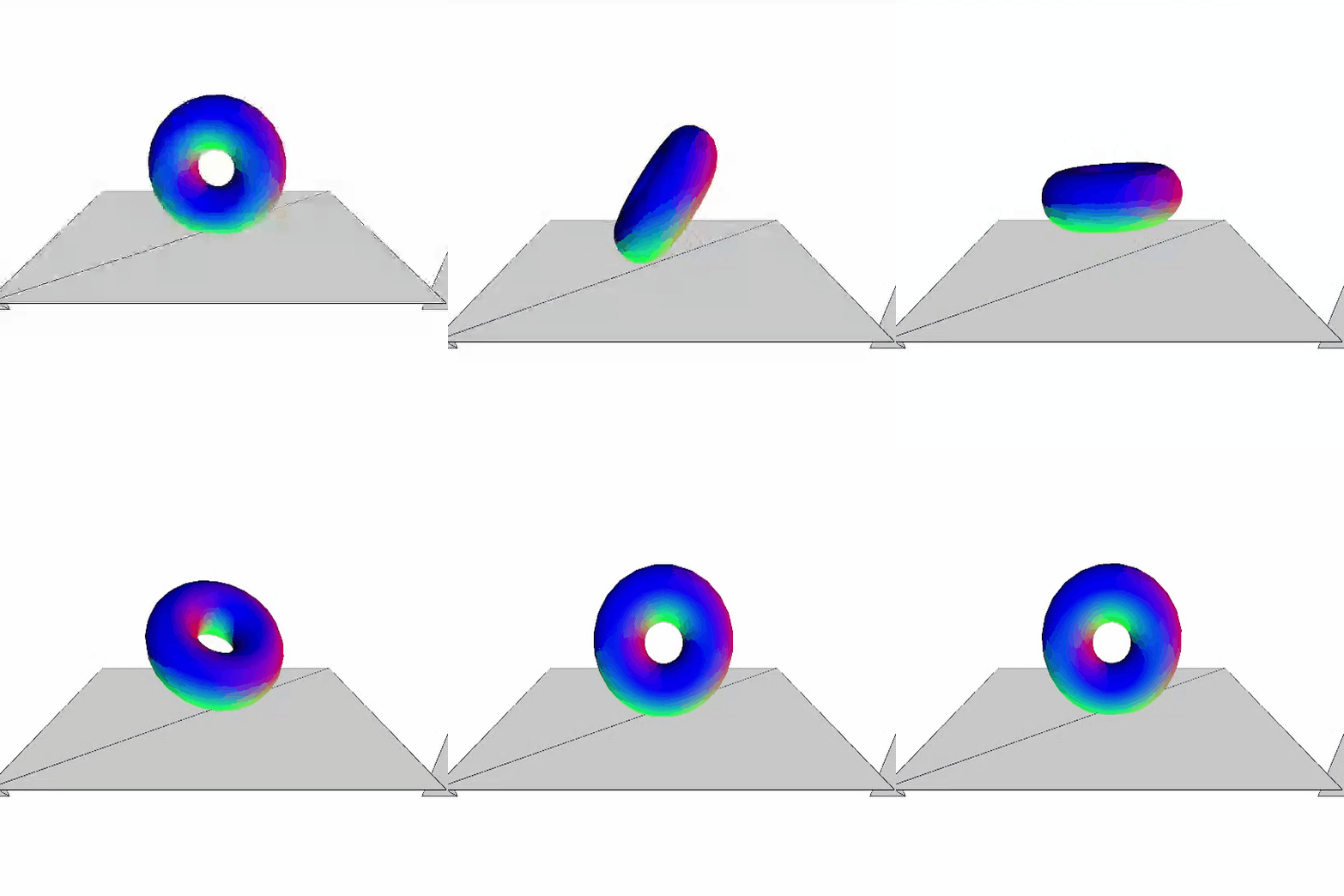
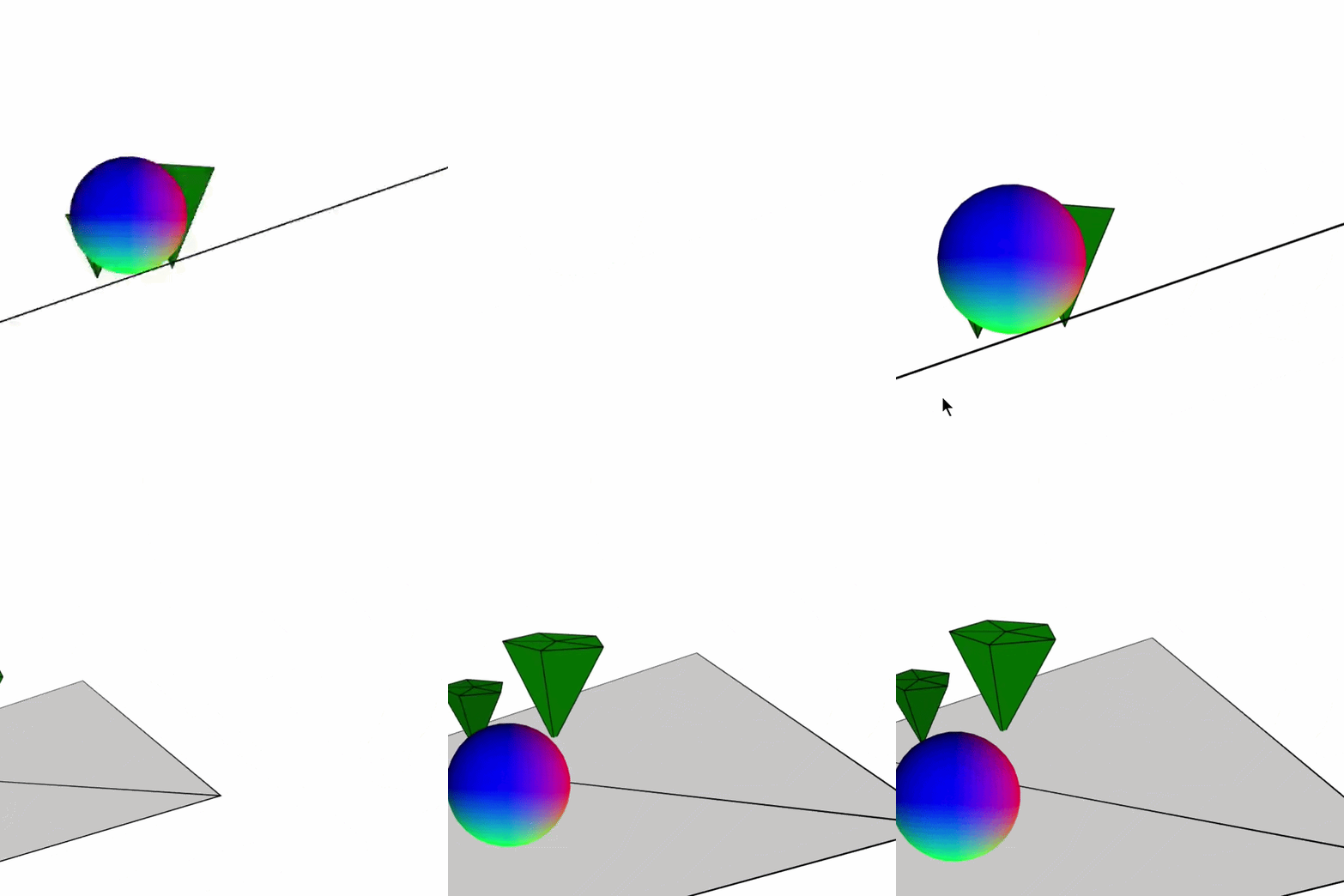
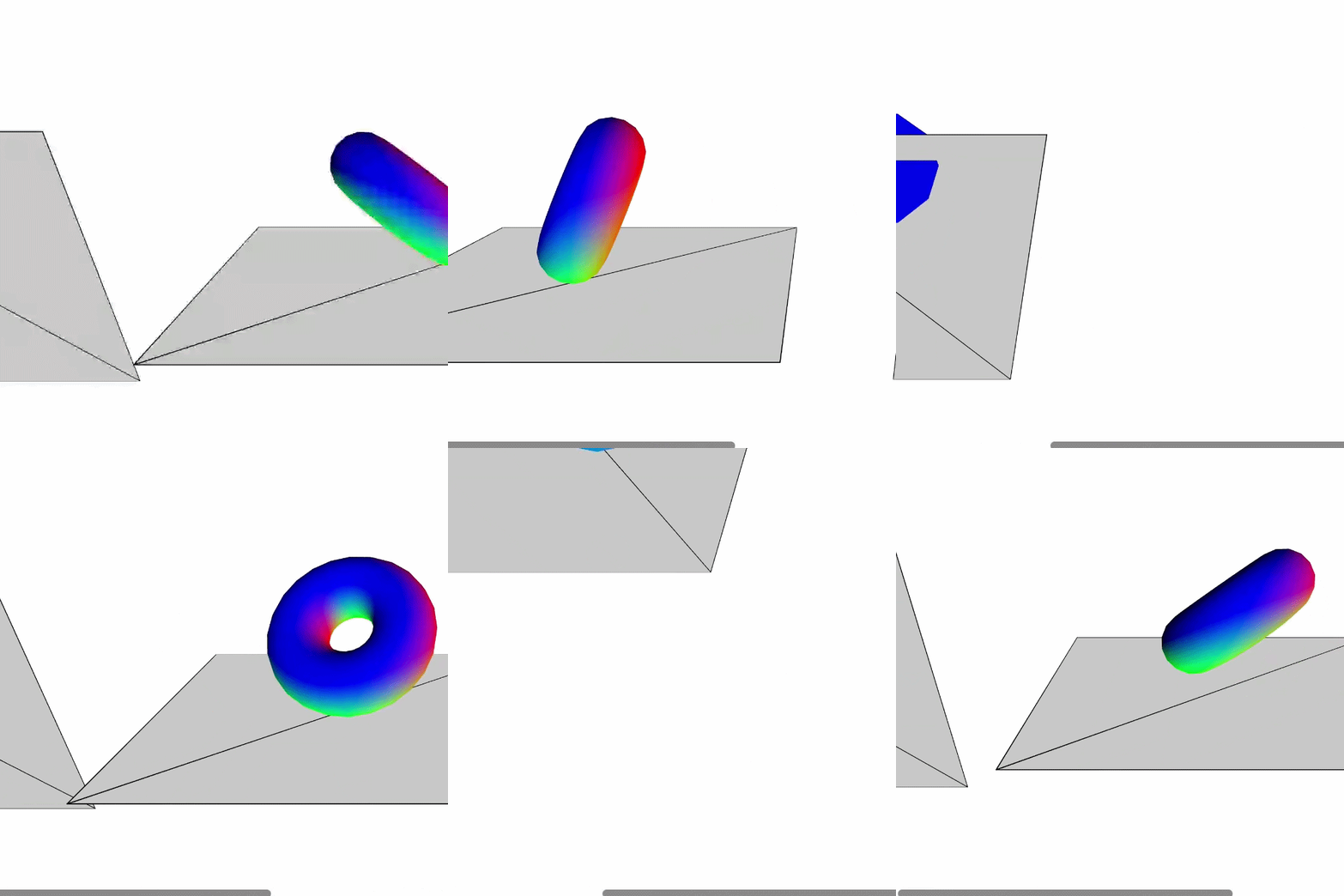
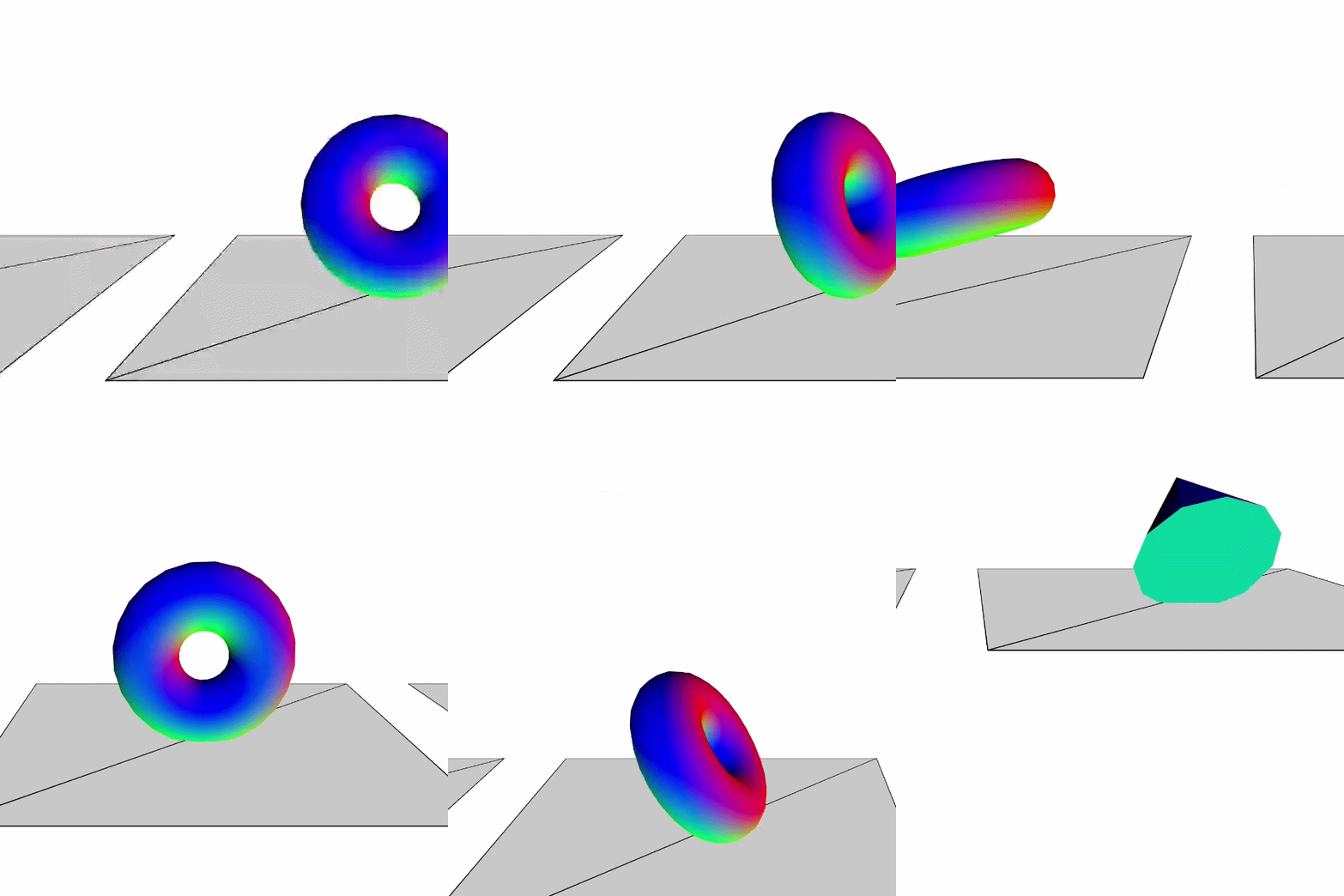
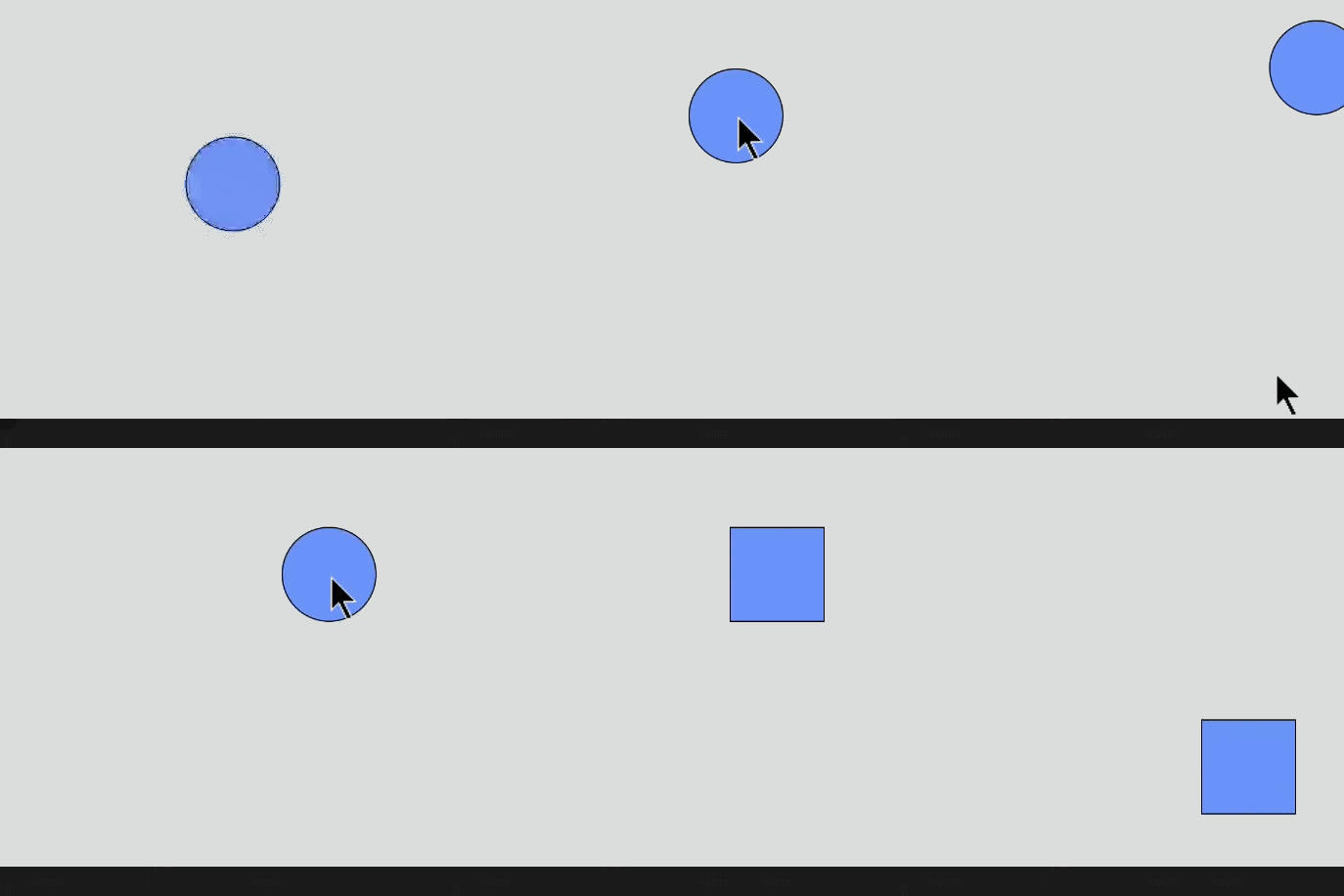
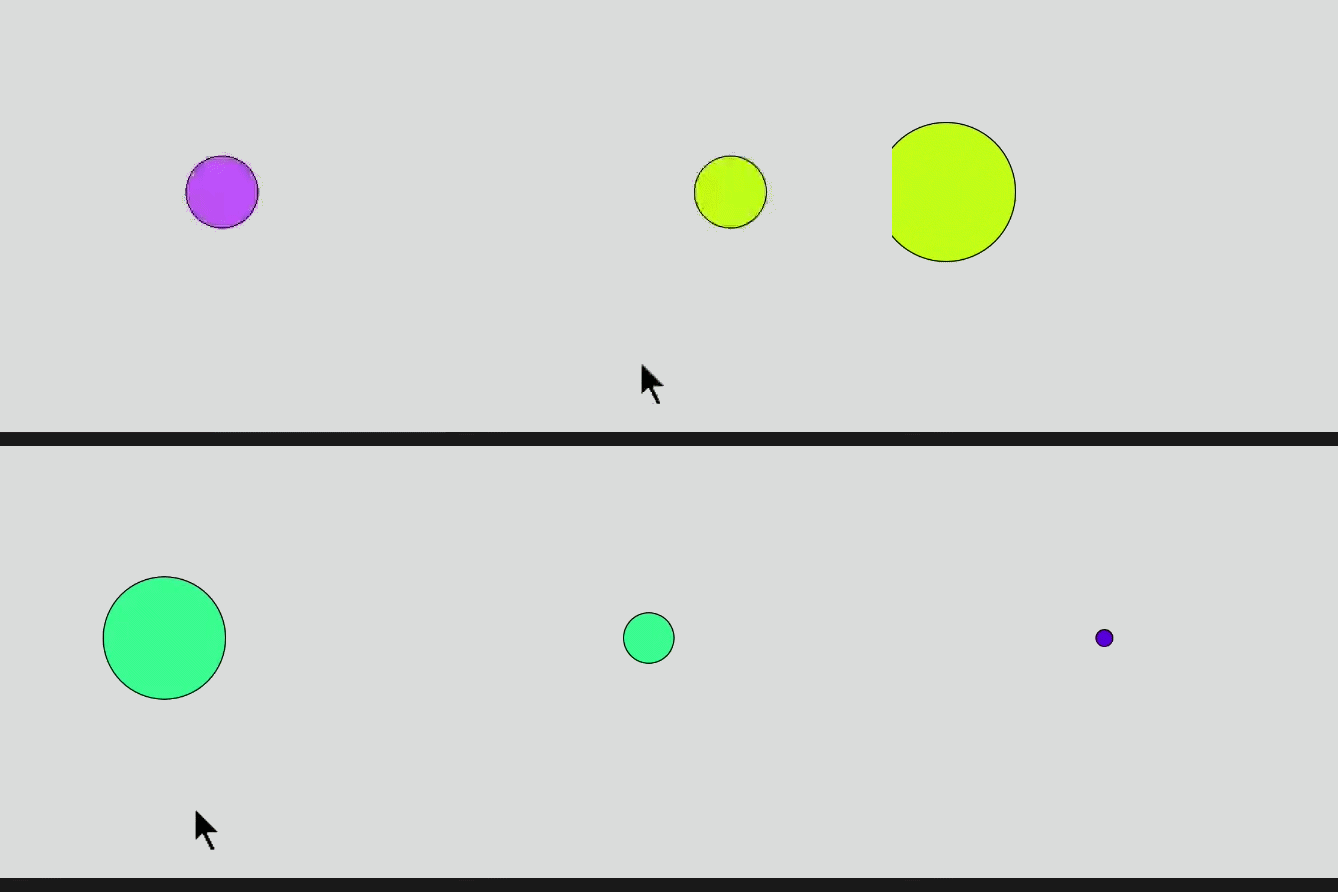
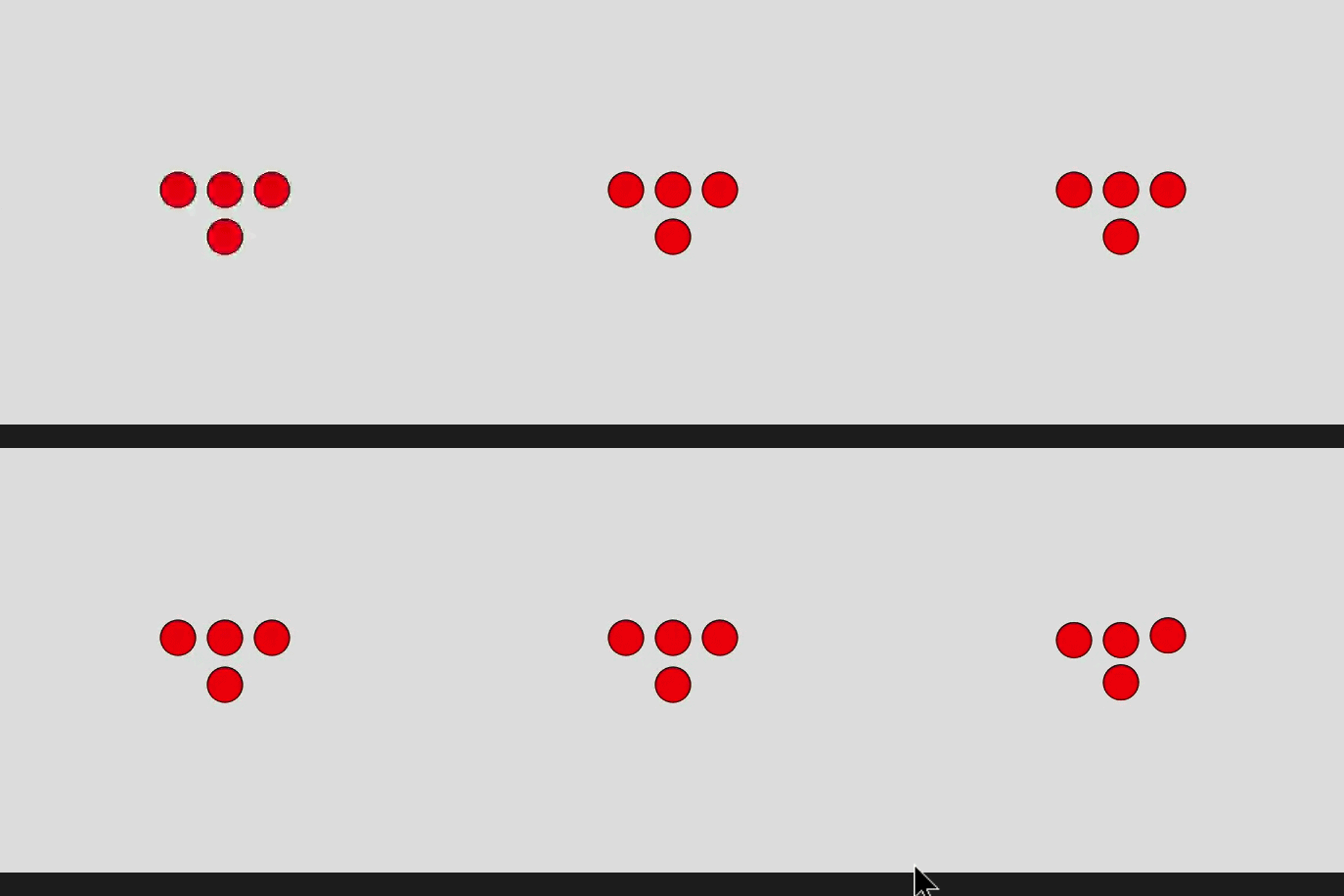
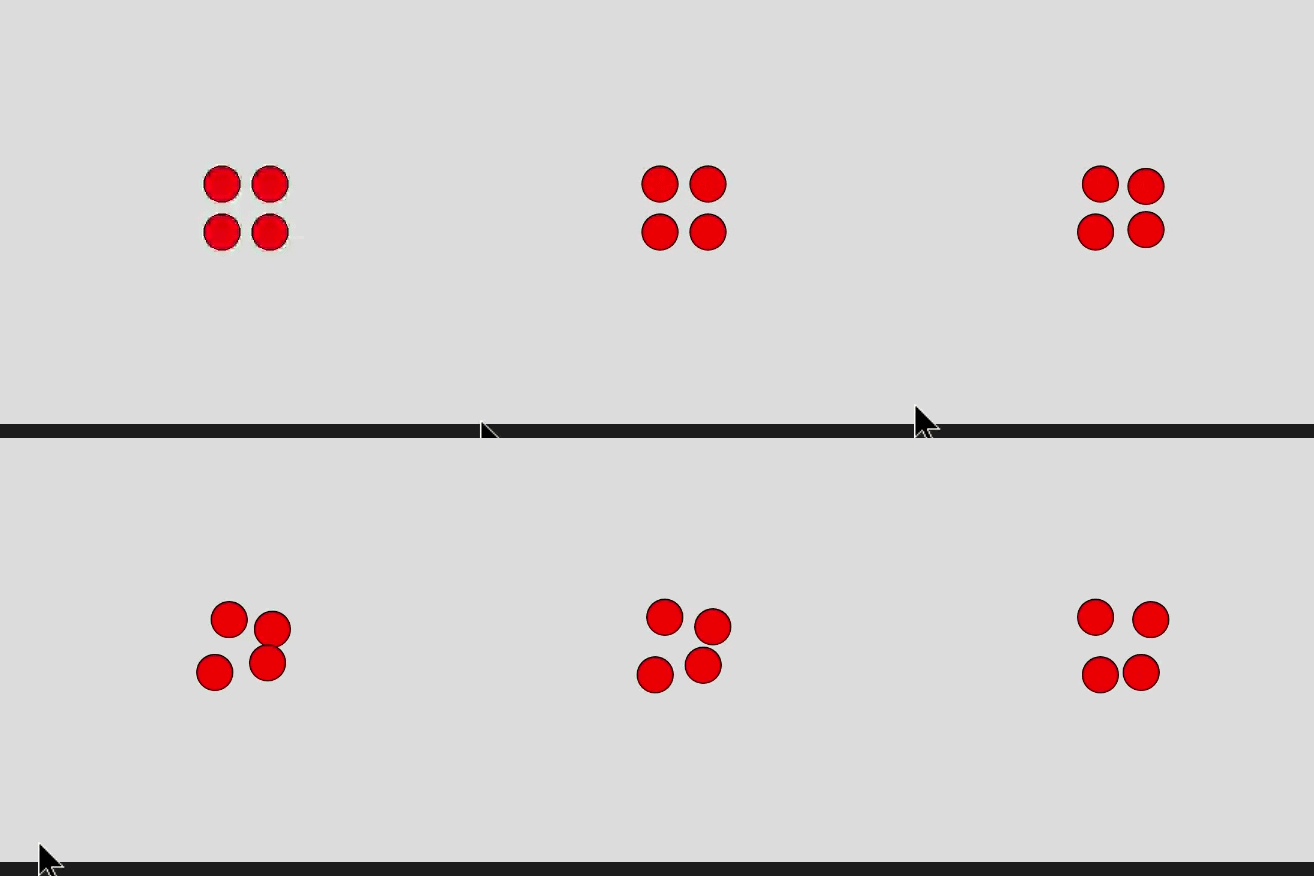
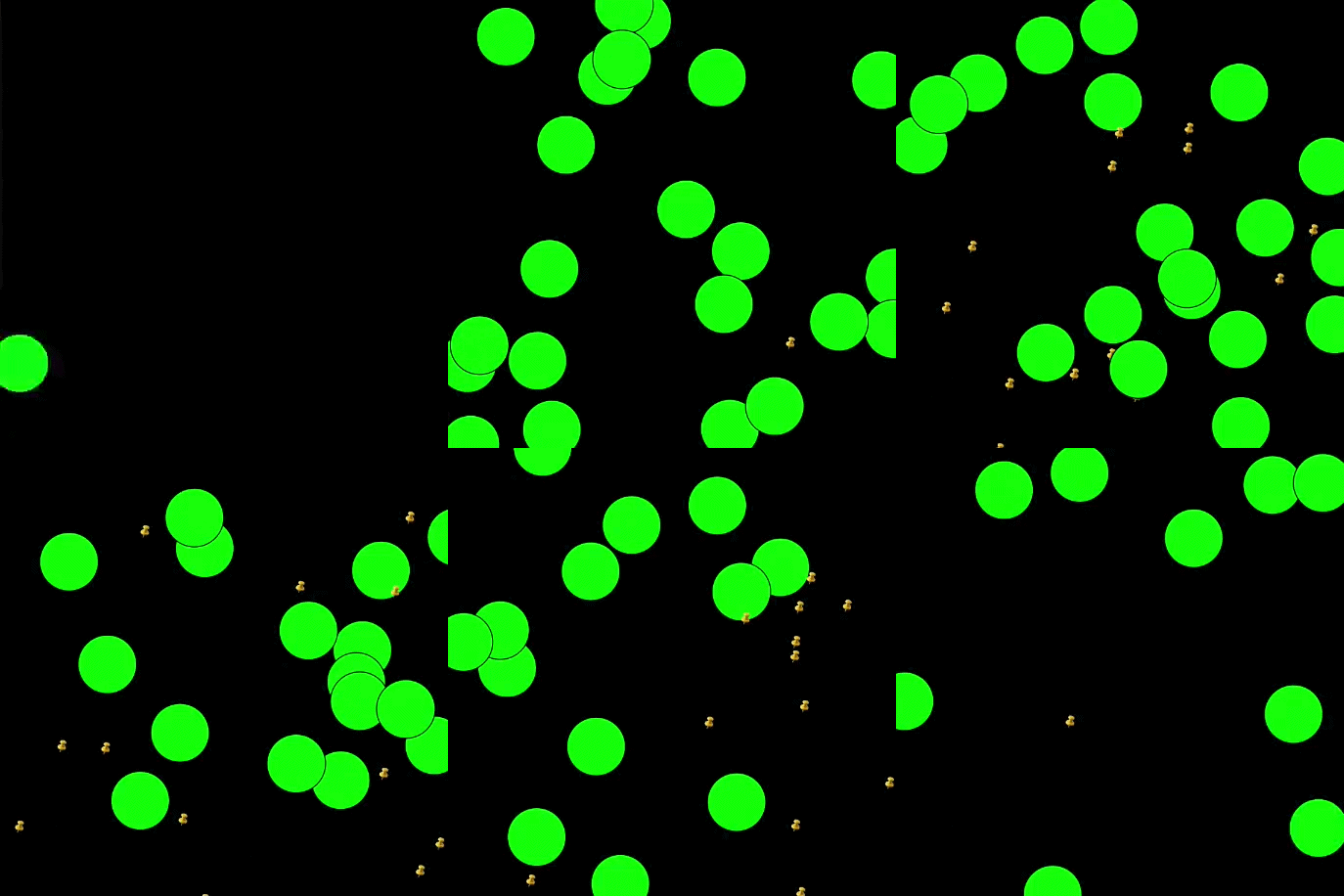
This sketch draws a square that stretches in the direction users input. This sketch is an iteration of the first sketch, with added colours to create the look of a present and simulate putting ribbon on a present. Clicking the mouse button and arrow keys changed the colour of the square by changing the RGB values individually depending on which key is pressed. This is an iteration of the tutorial code that includes two more added planes with new shapes. an iteration of the tutorial code with tweaked values to make the rotation faster and change the movement. I messed around with different shape types and created a pyramid on a plane in place of the torus I tried out different texture types and shapes on a plane. I was trying to put together 3D models to create a tree beside sphere but I couldnèt seem to get the positions correct. Tutorial code iteration with additional shapes and value changes. I figured out how to straighten the planes and create plates side by side with rotating shapes. This sketch allows the user to move the shape using arrow keys and increase and decrease its size using the mouse press. This sketch changes the position of the circle to the position of the mouseX and mouseY coordinates when it clicks. This code creates a circle that eventually fades when mouse is clicked On mouse click the colour of the shape is randomized, and the arrow keys can be used to change the shape into a different one. Edited a community sketch that creates moving lines. This iteration allows the user to control the stream using arrow keys and creates new coloured moving lines using mouse press. This sketch uses arrow keys to move the circle side to side, up and down arrow to grow and shrink the circle, and mouse press to change the colour. This sketch uses arrow keys to move the circle to a different corner each press and changes the colour depending on which arrow key you press. This sketch makes the circle vibrate faster or slower depending on which arrow key you press (up or down) This sketch allows you to control multiple circles at the same time using arrow keys to slowly move them around This is another iteration of the last sketch that puts four of them together but lets you control them seperately. This code plays a doorbell sound and makes the circle flash lighter when the user presses a button. This creates a circle where the user clicks that fades in a few seconds and plays a bell sound. This places an image randomnly on the canvas when the user presses a button and plays a sound according to which button the user presses. It places a cat when you press one button and plays a sound effect or places a bird on the canvas when you press the other. This is a community example that spawns circles and a thumbtack when the user presses down on a key. This is a tweaked iteration of the tutorial code. I changed the octaves for each arrow key.

Activity 2
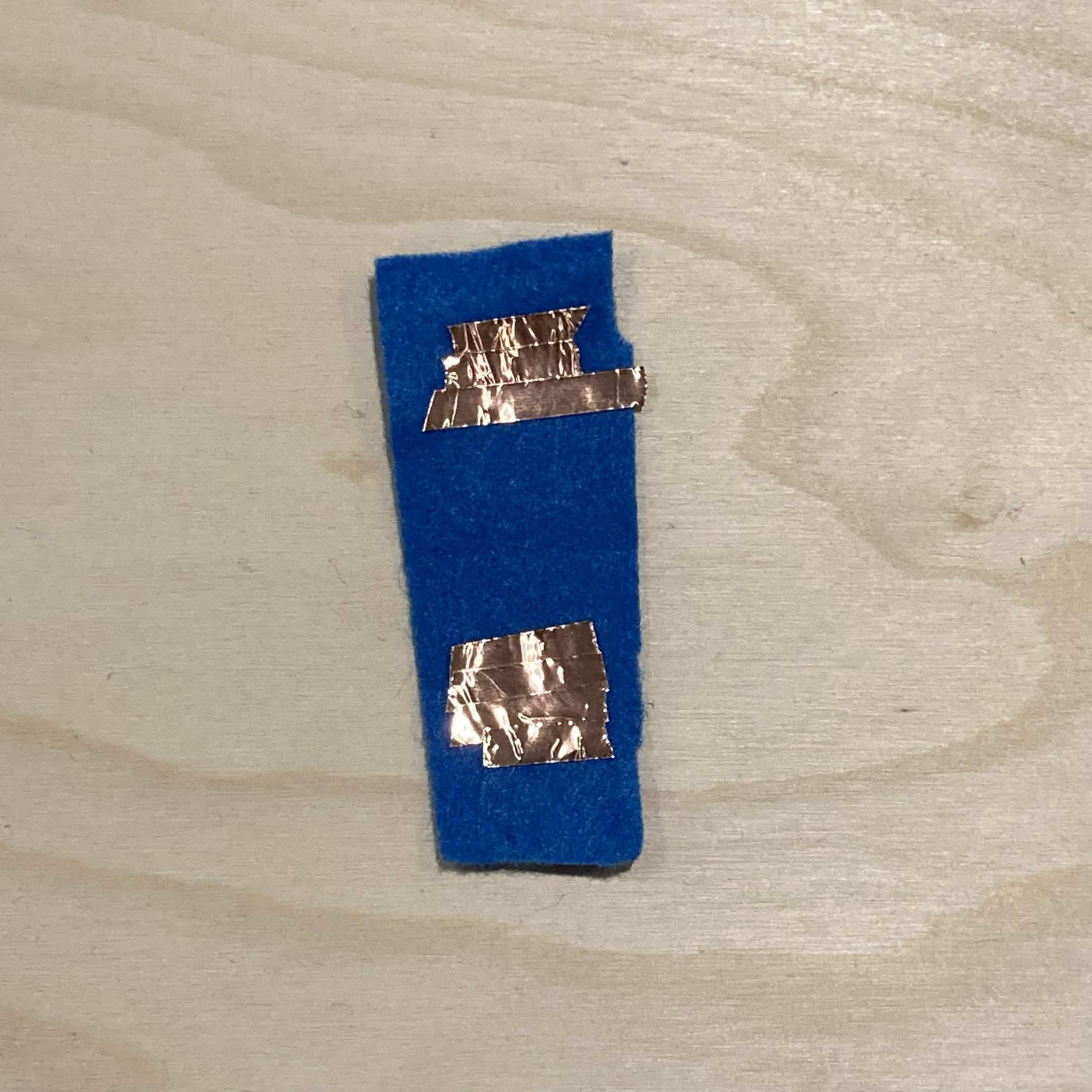
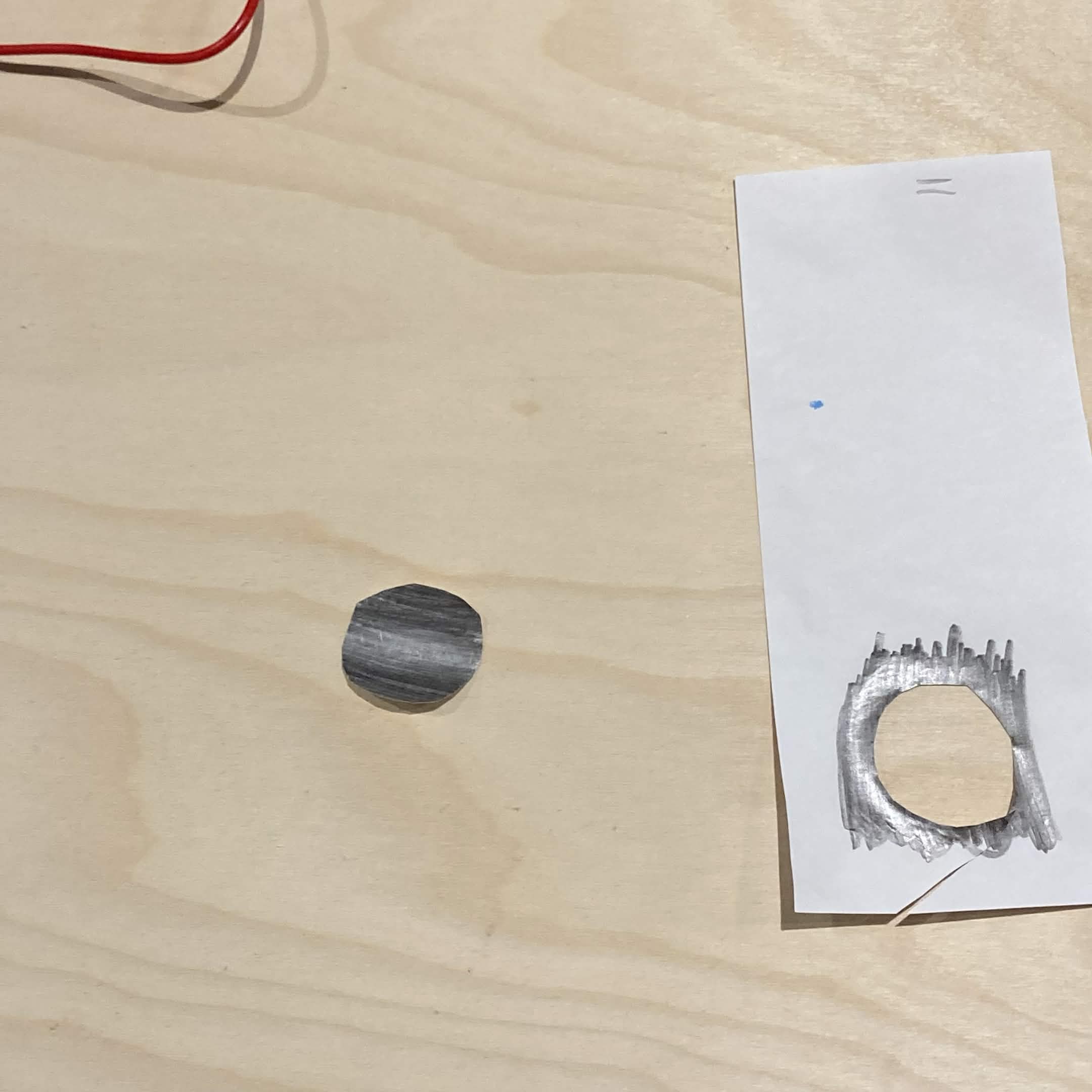
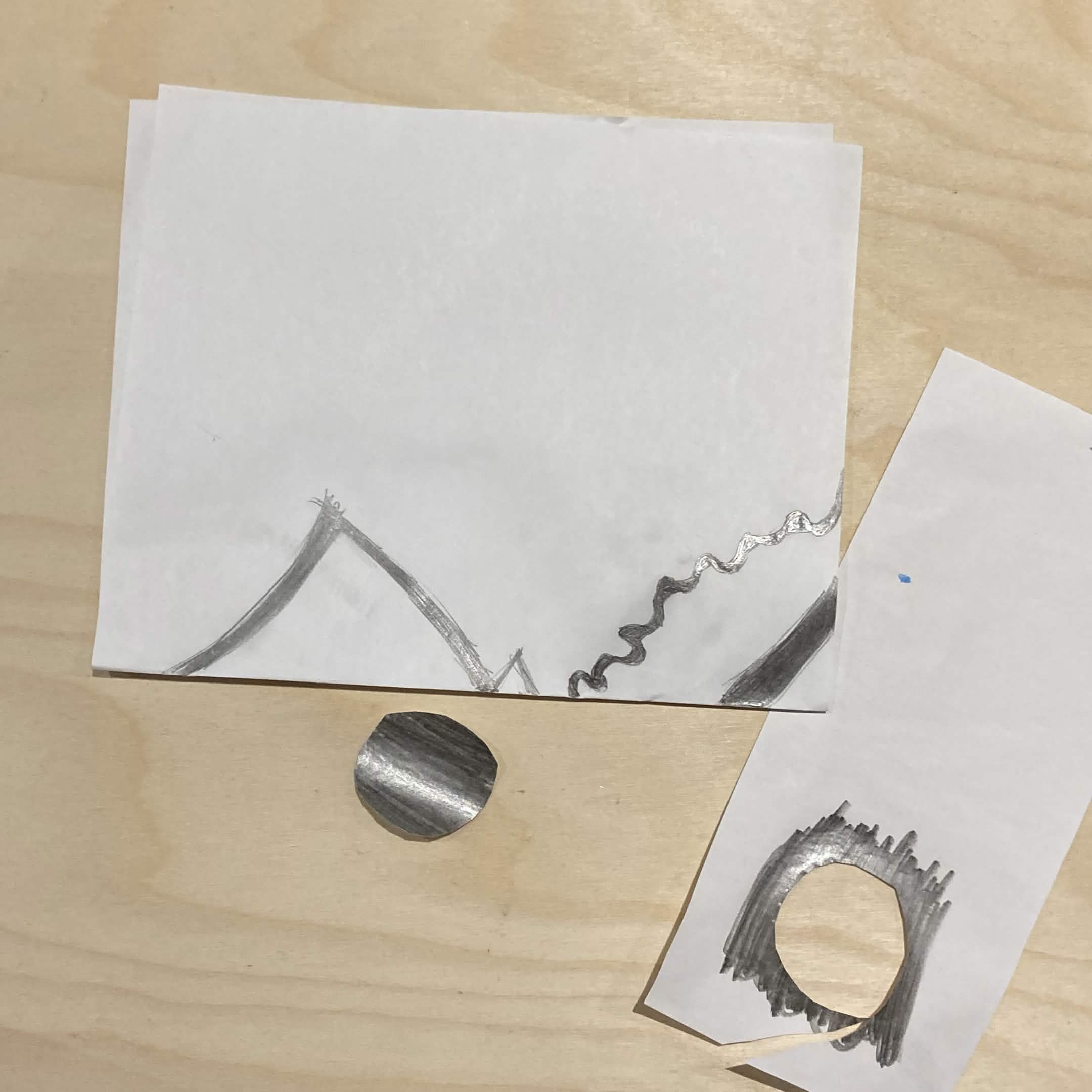
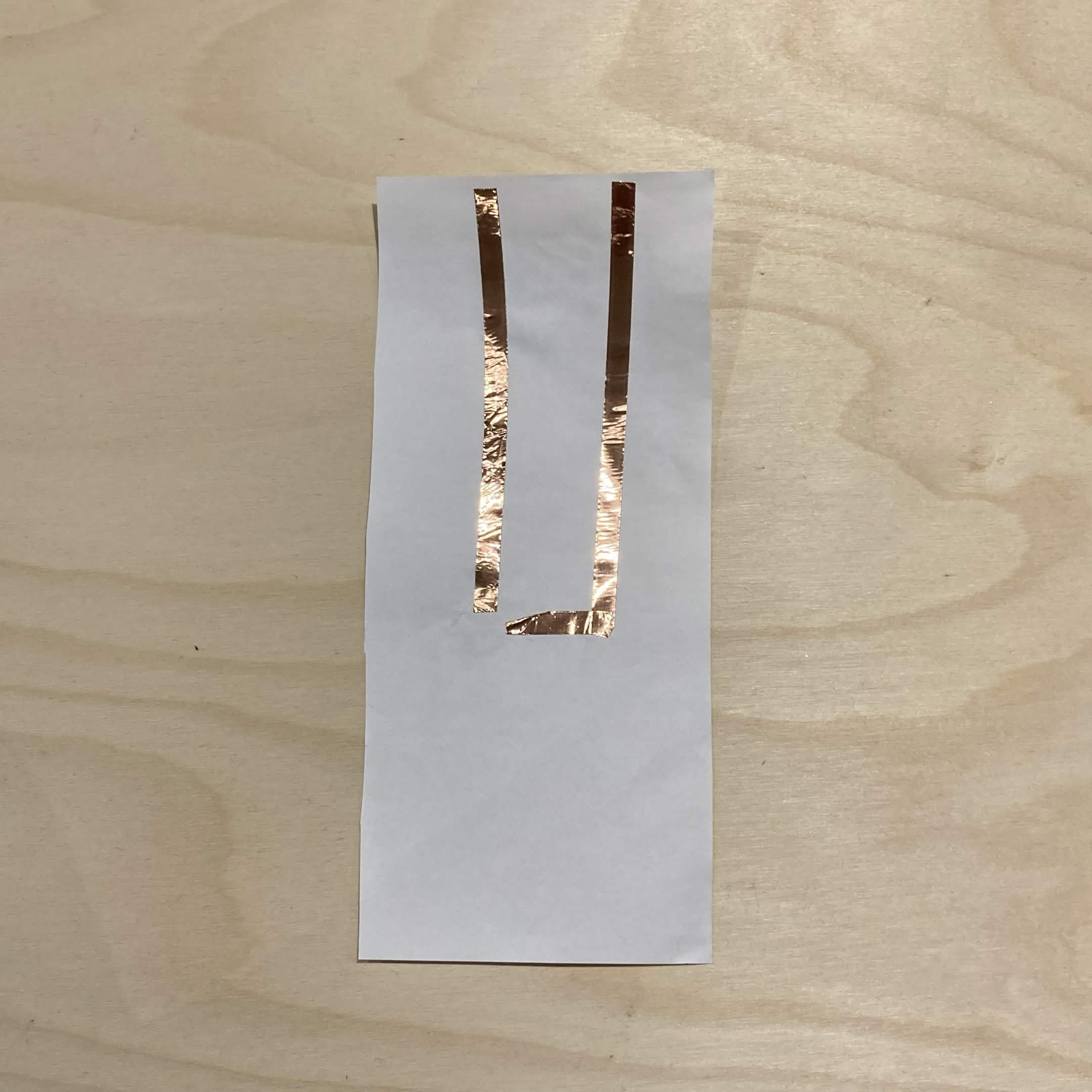
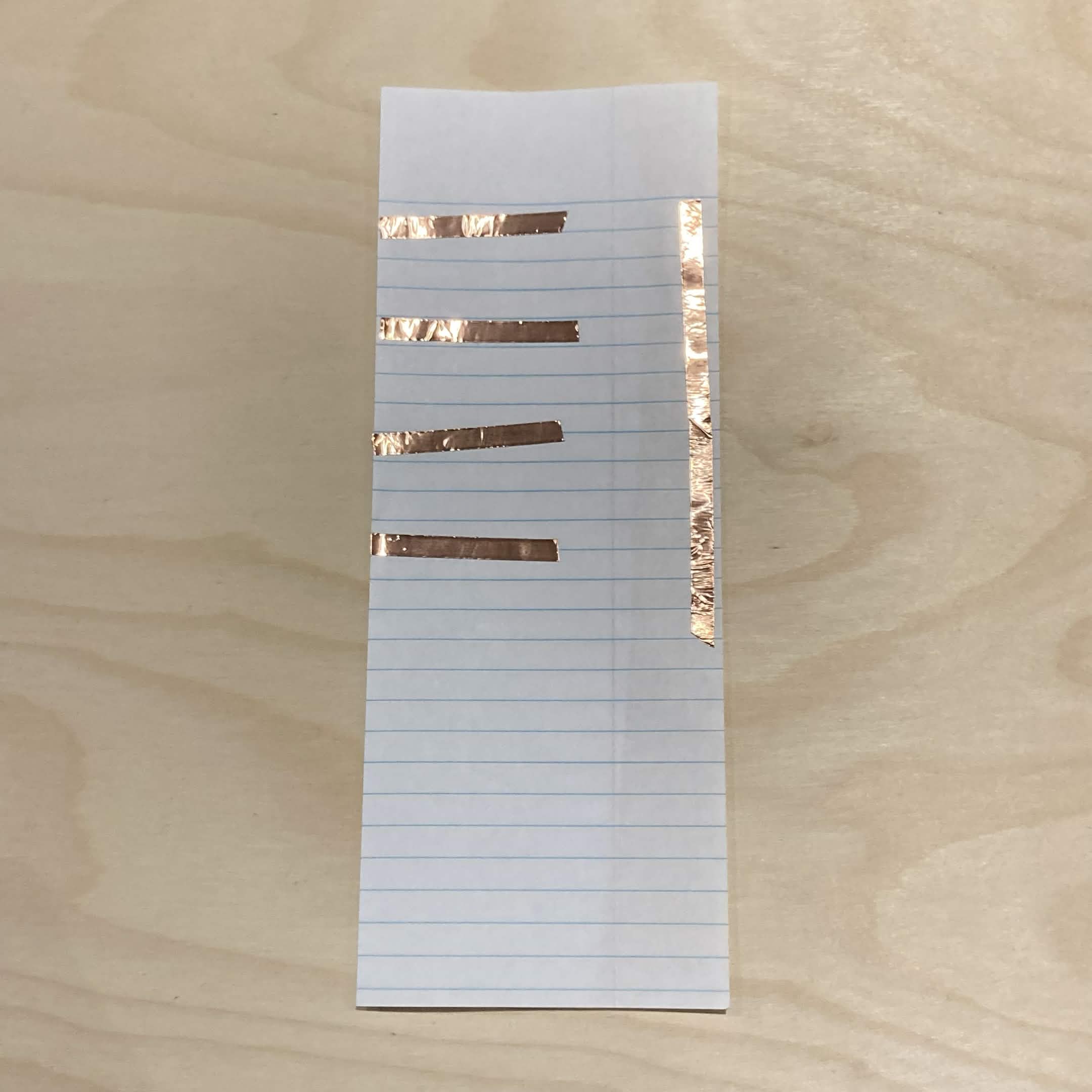
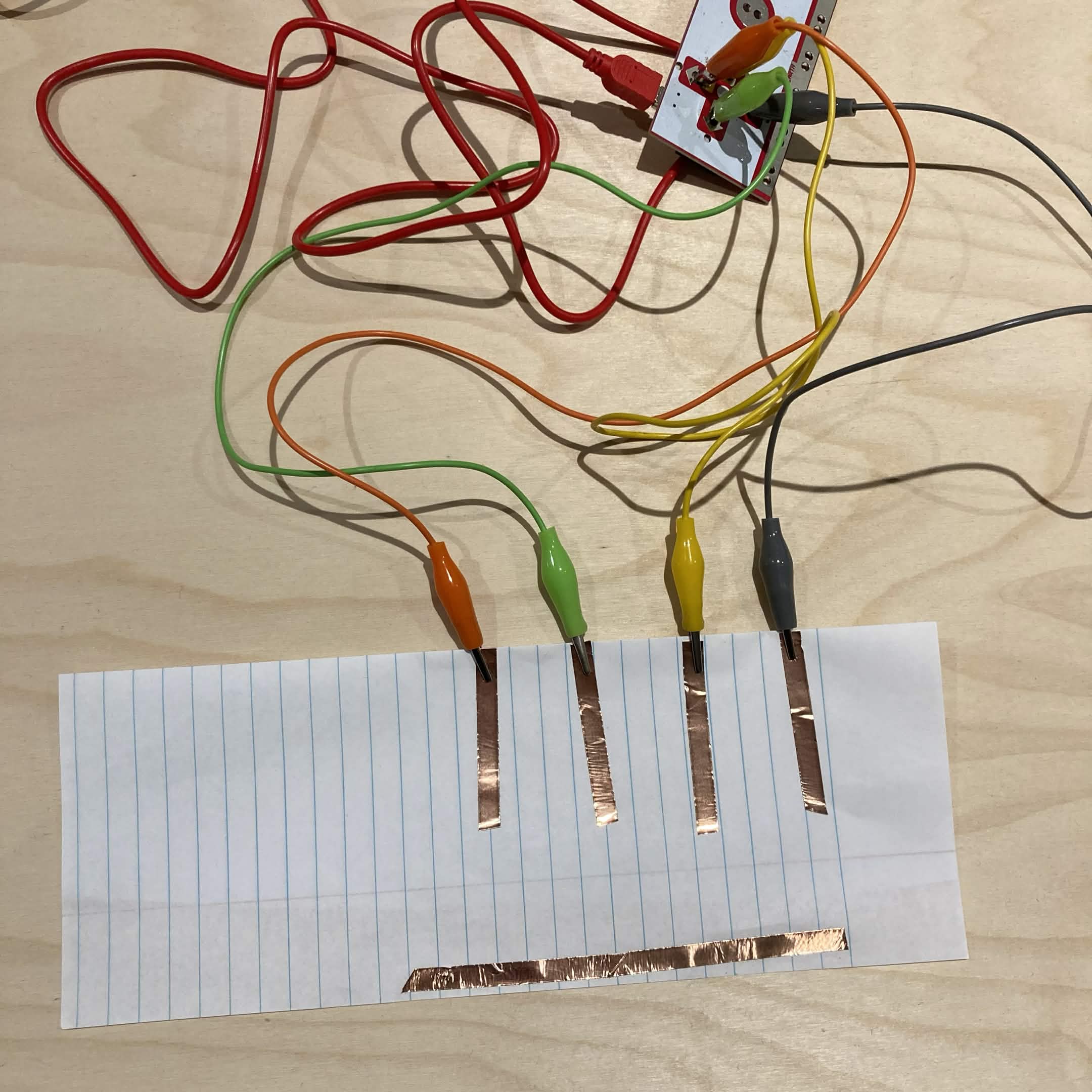
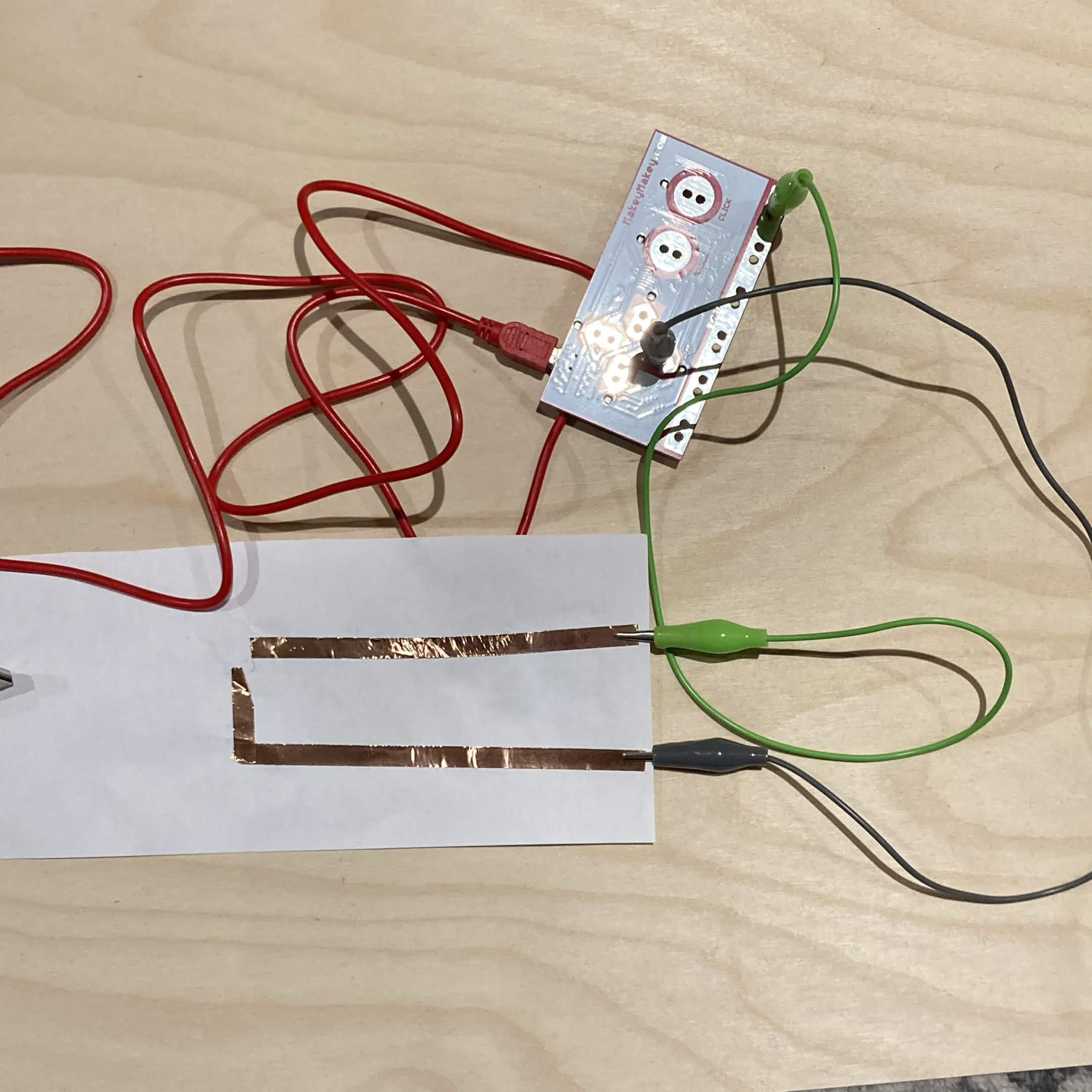
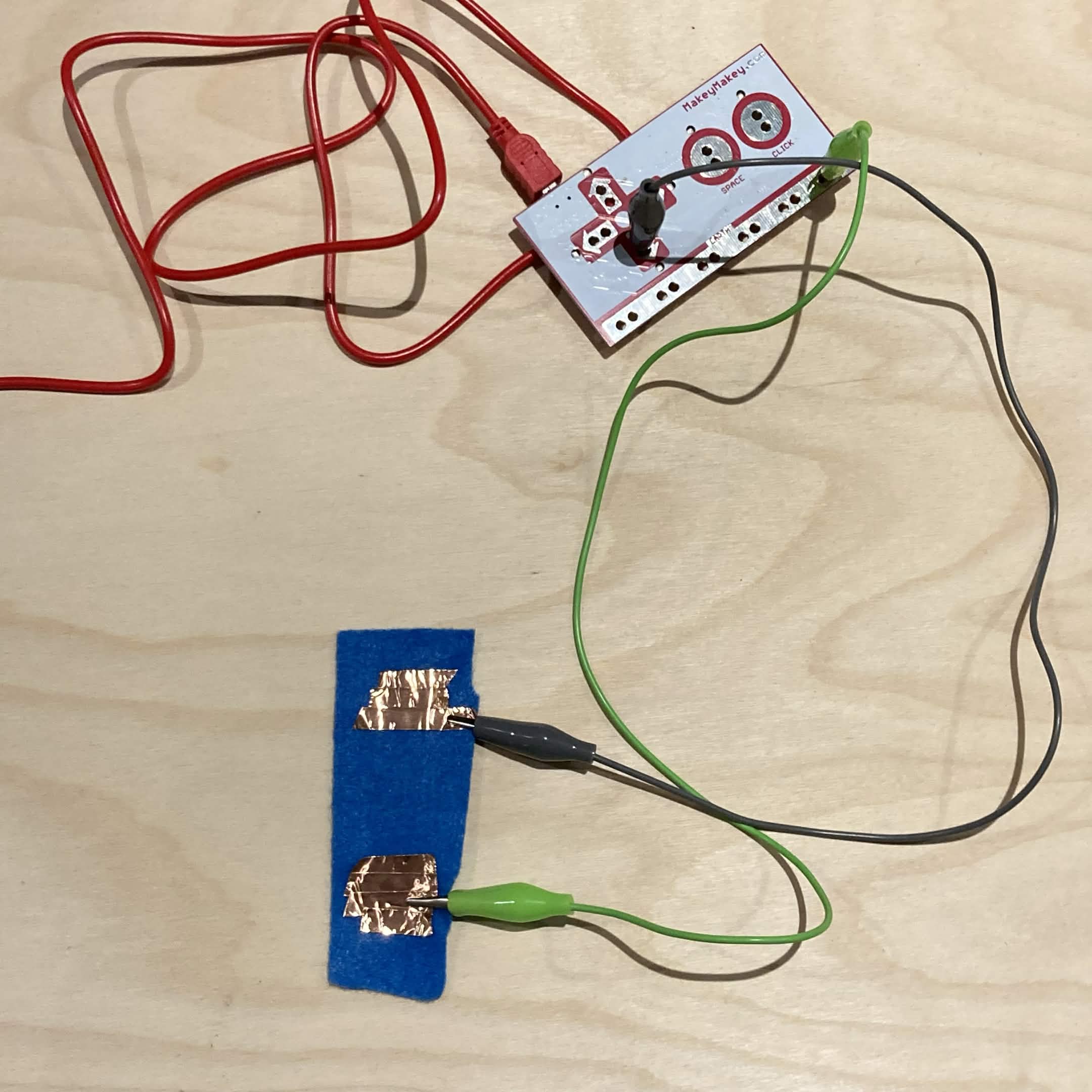
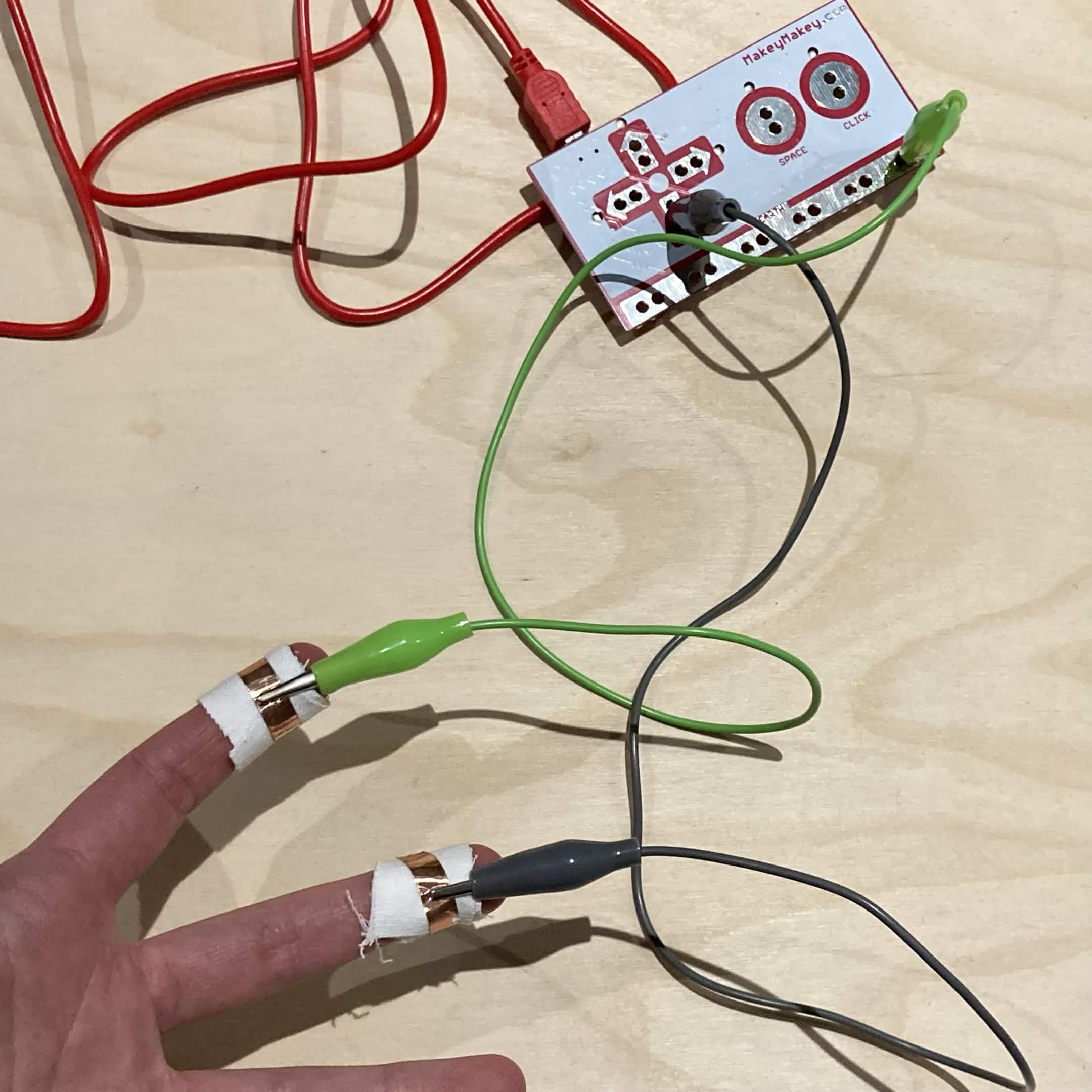
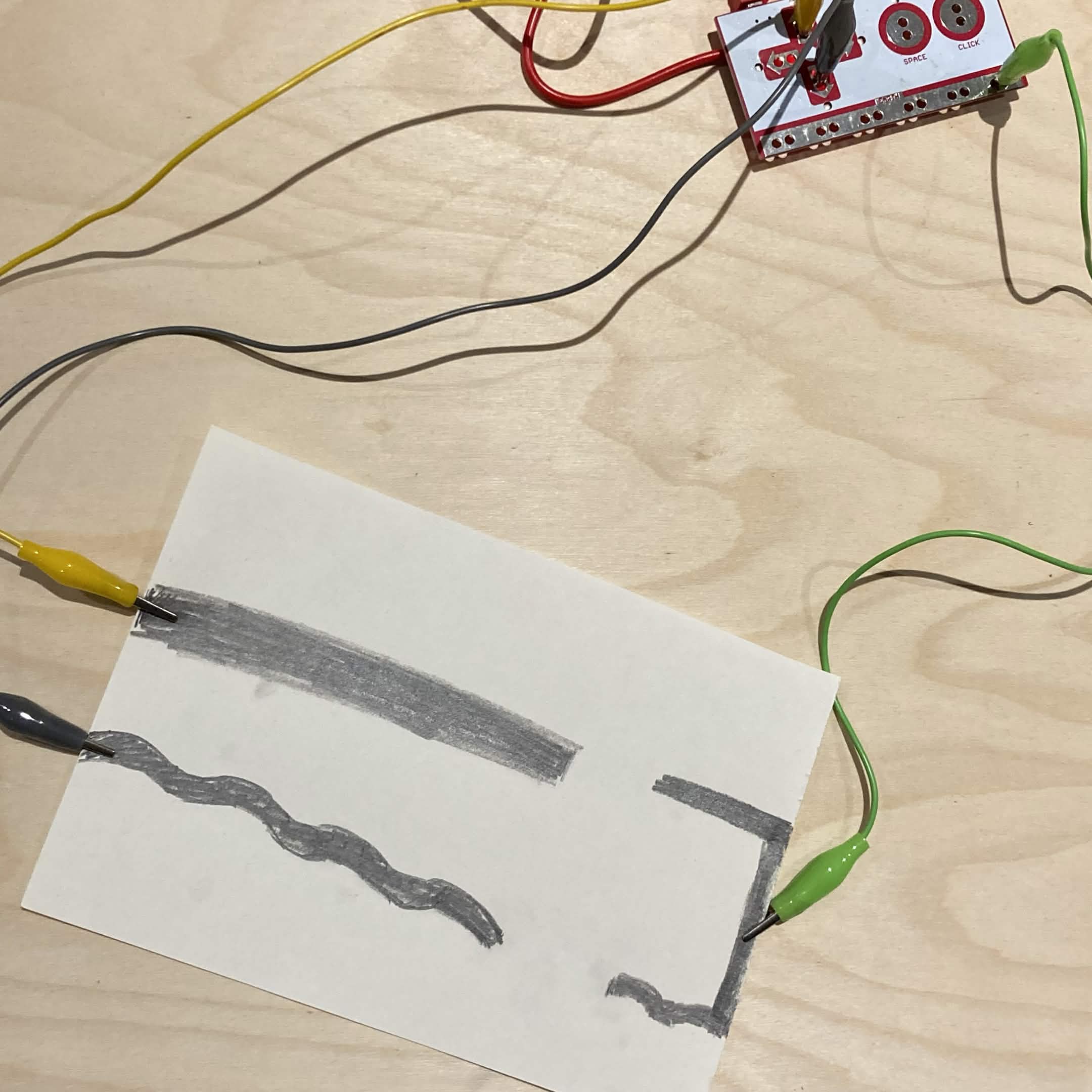
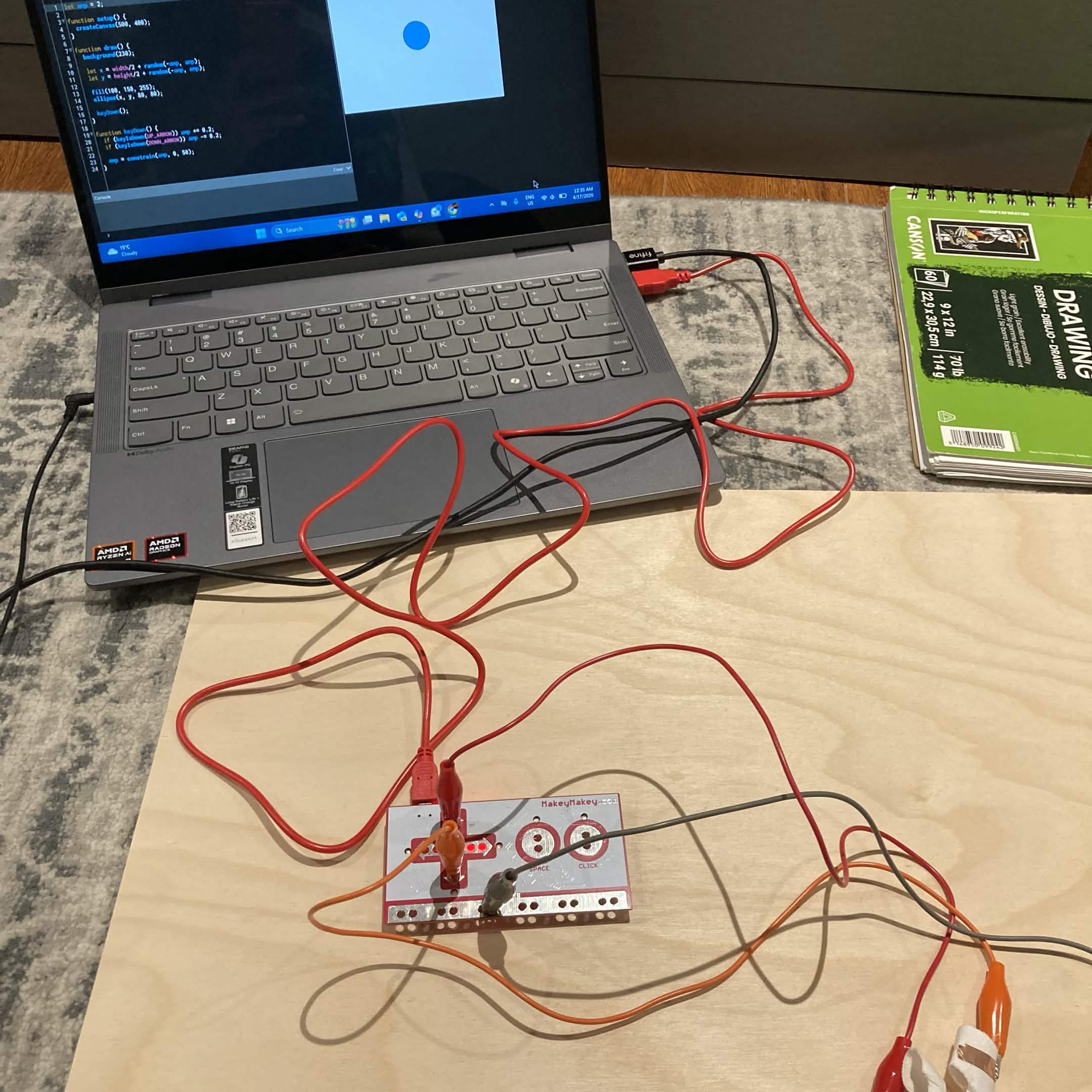
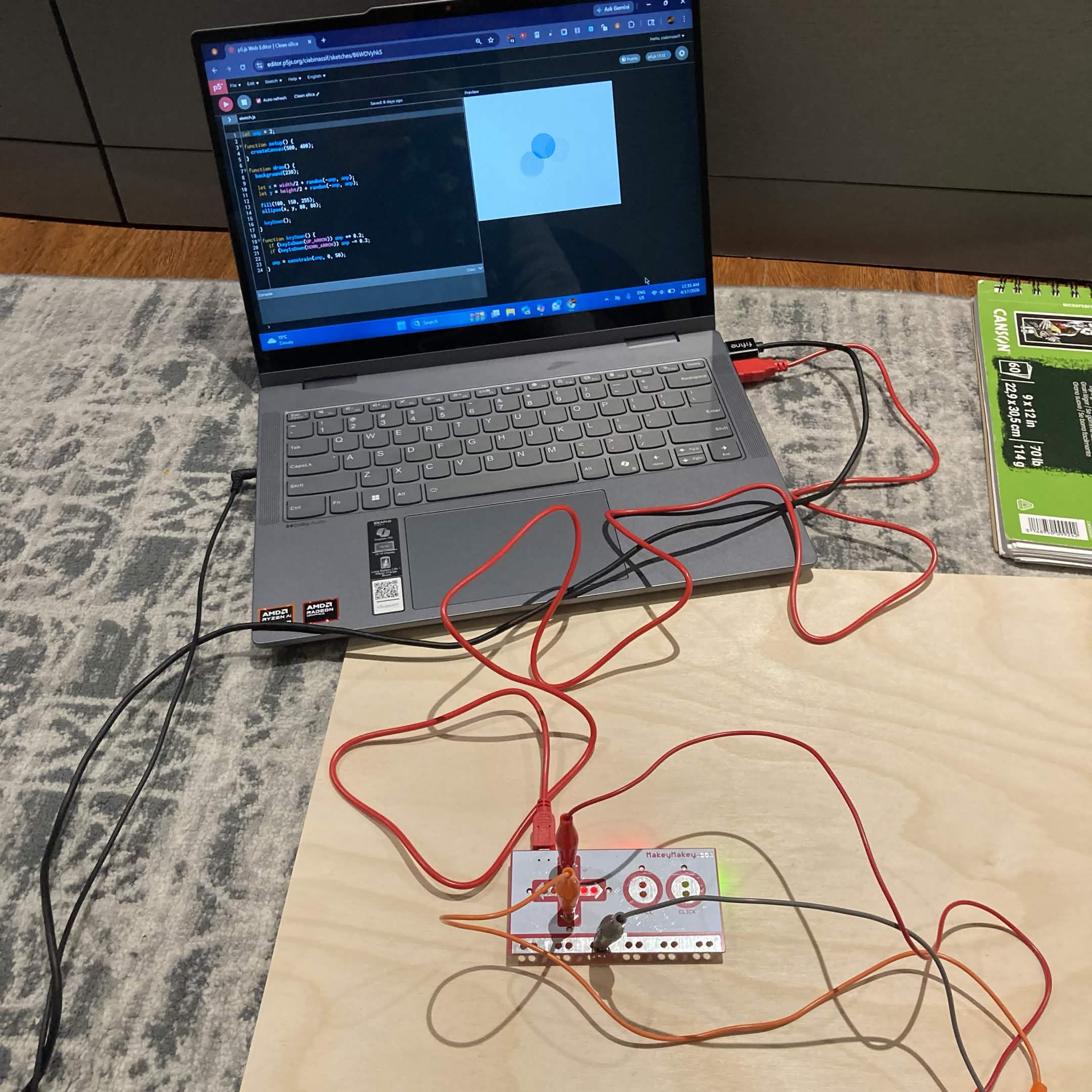
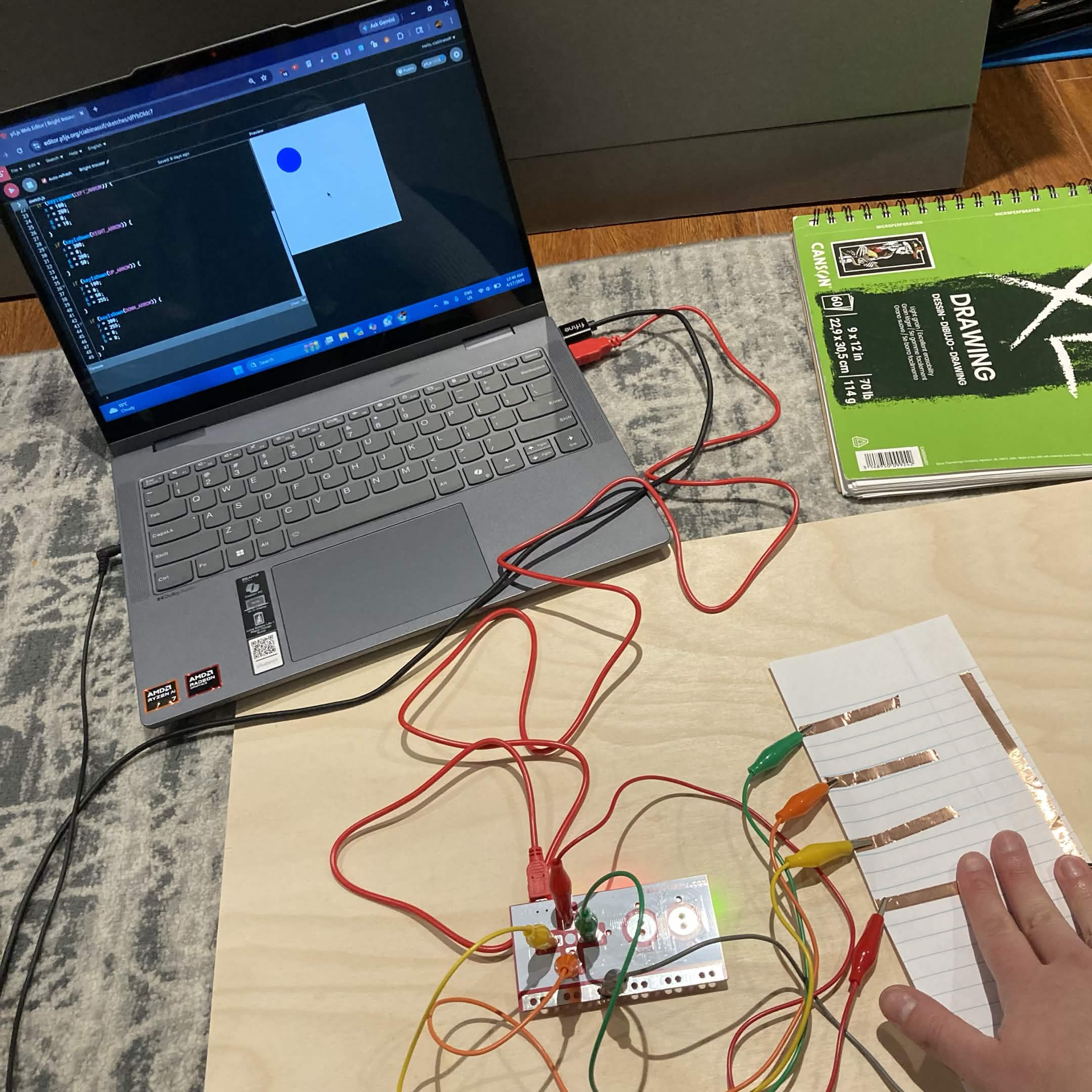
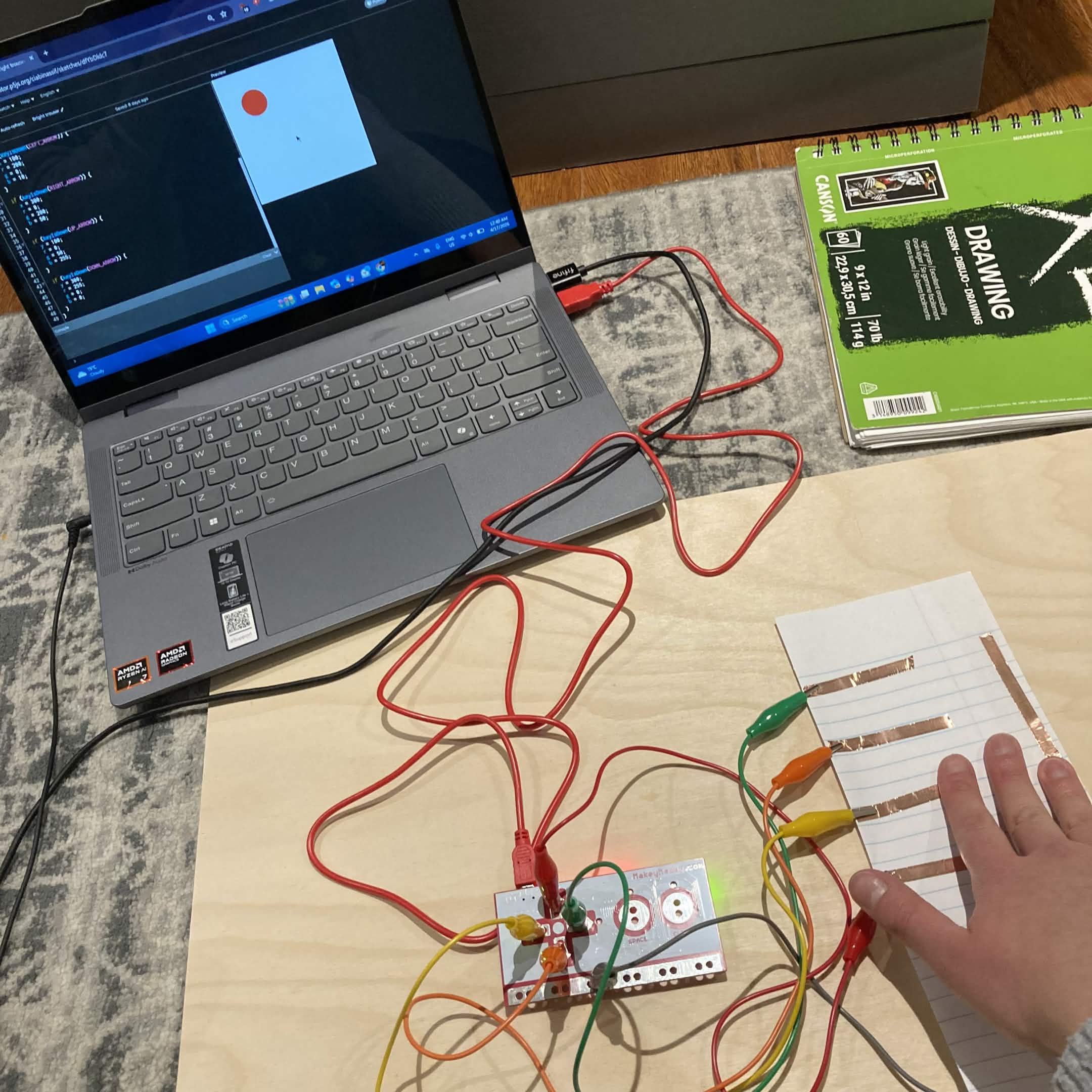
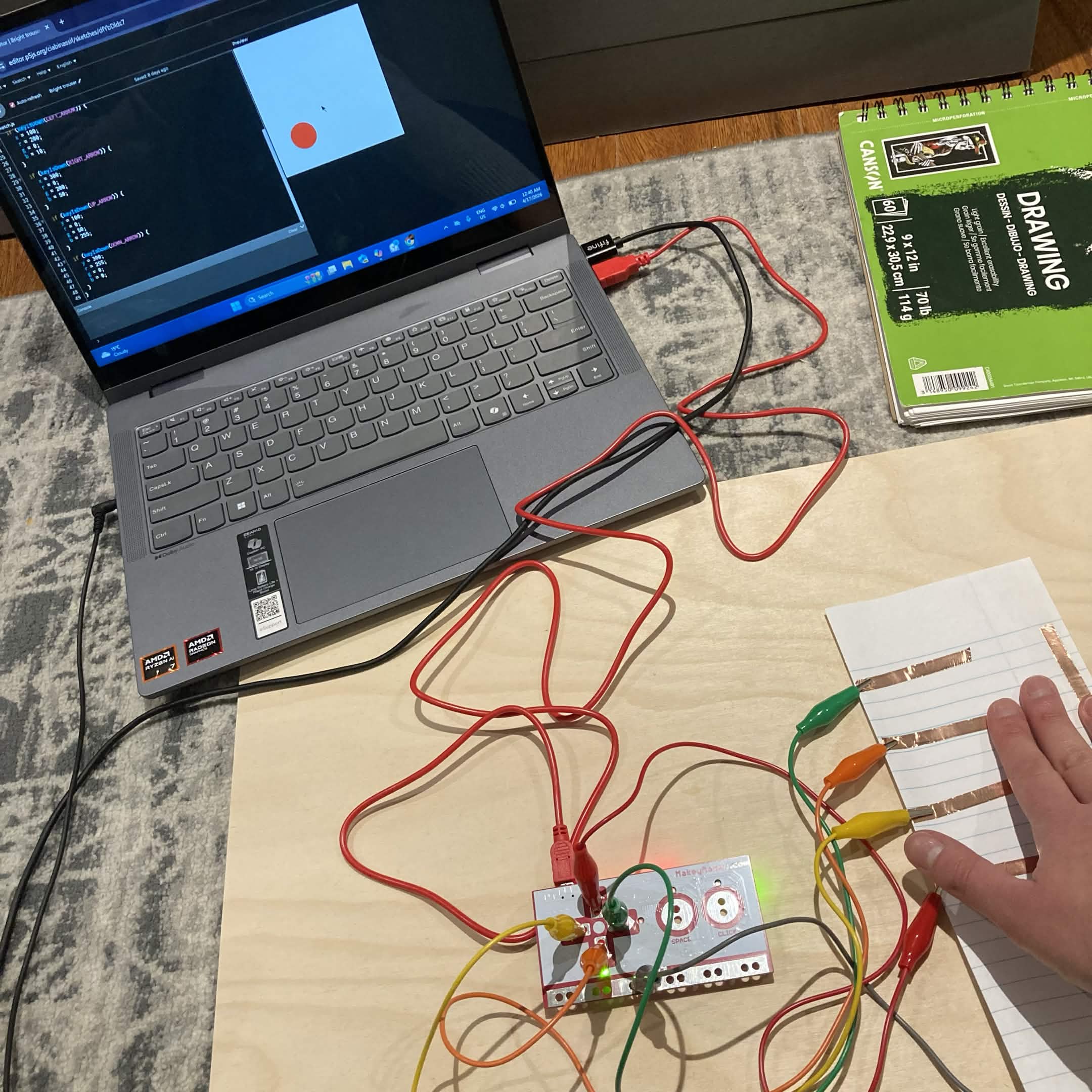
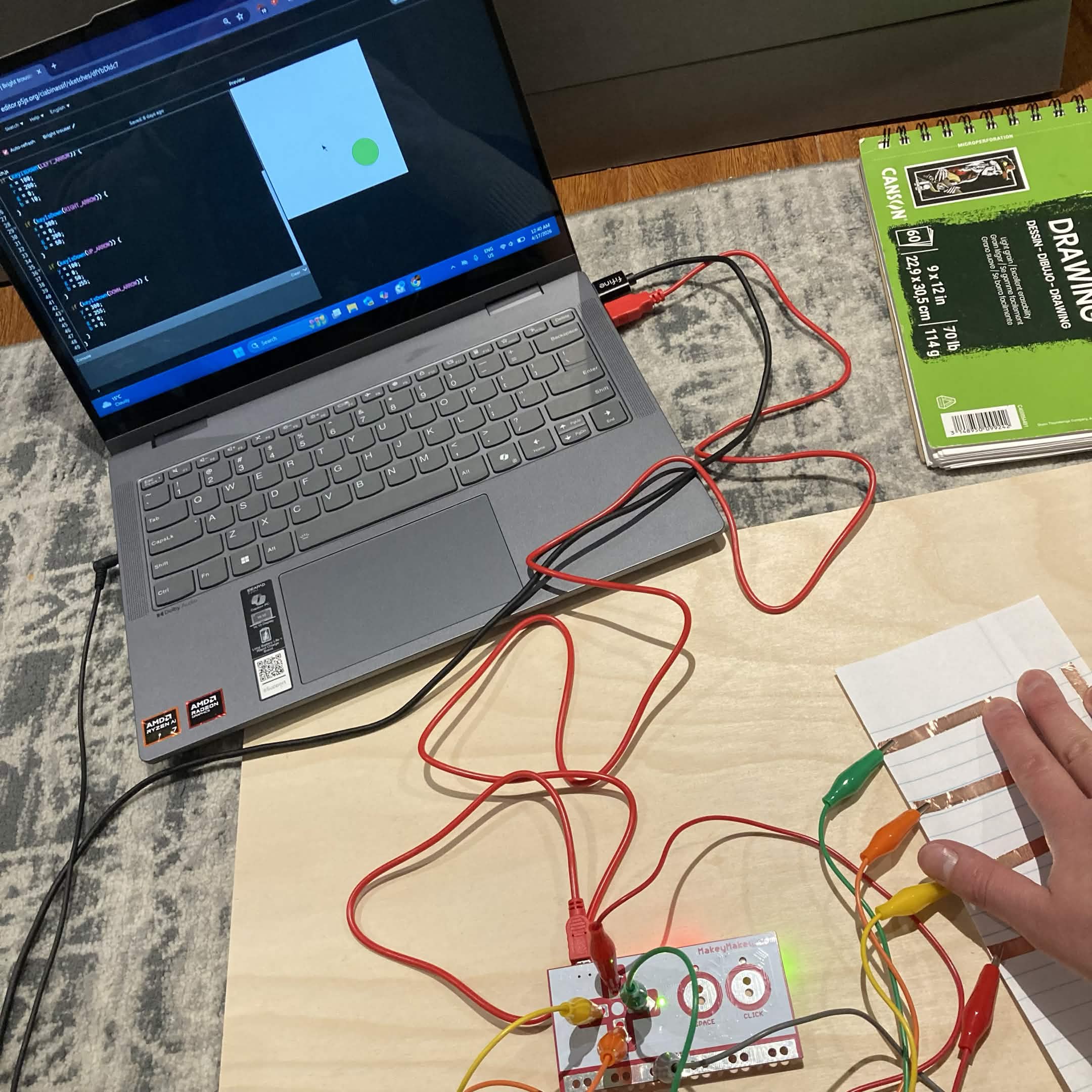
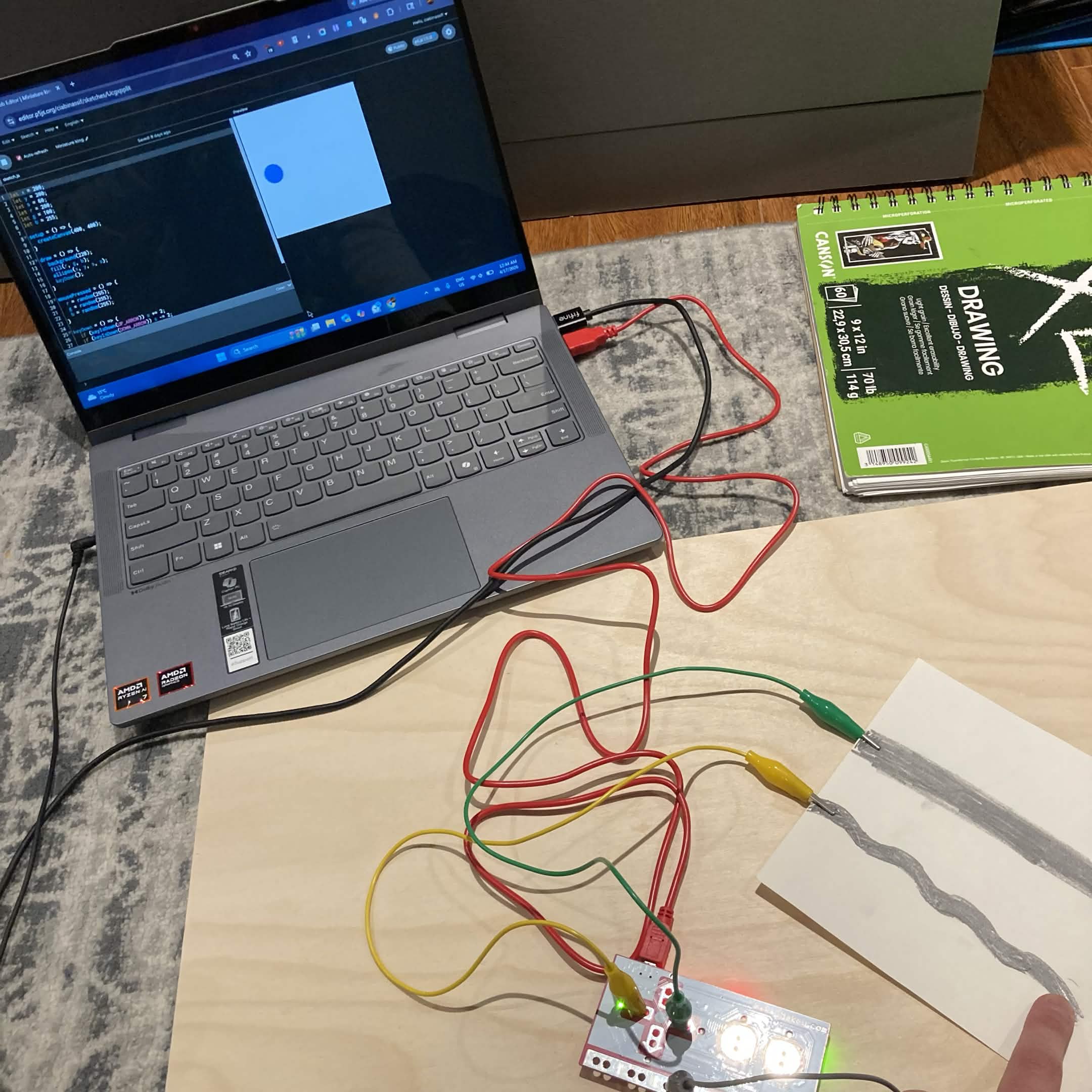
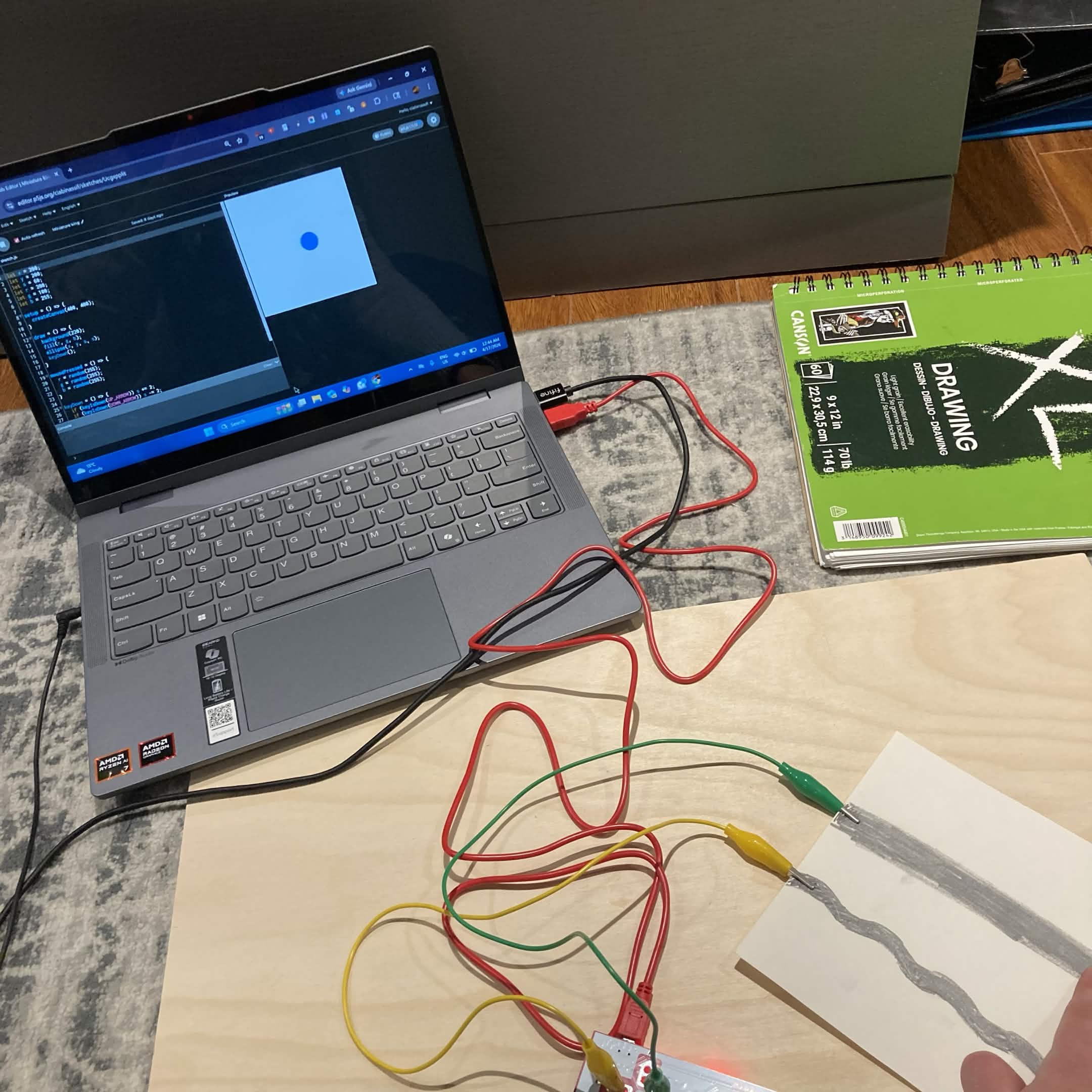
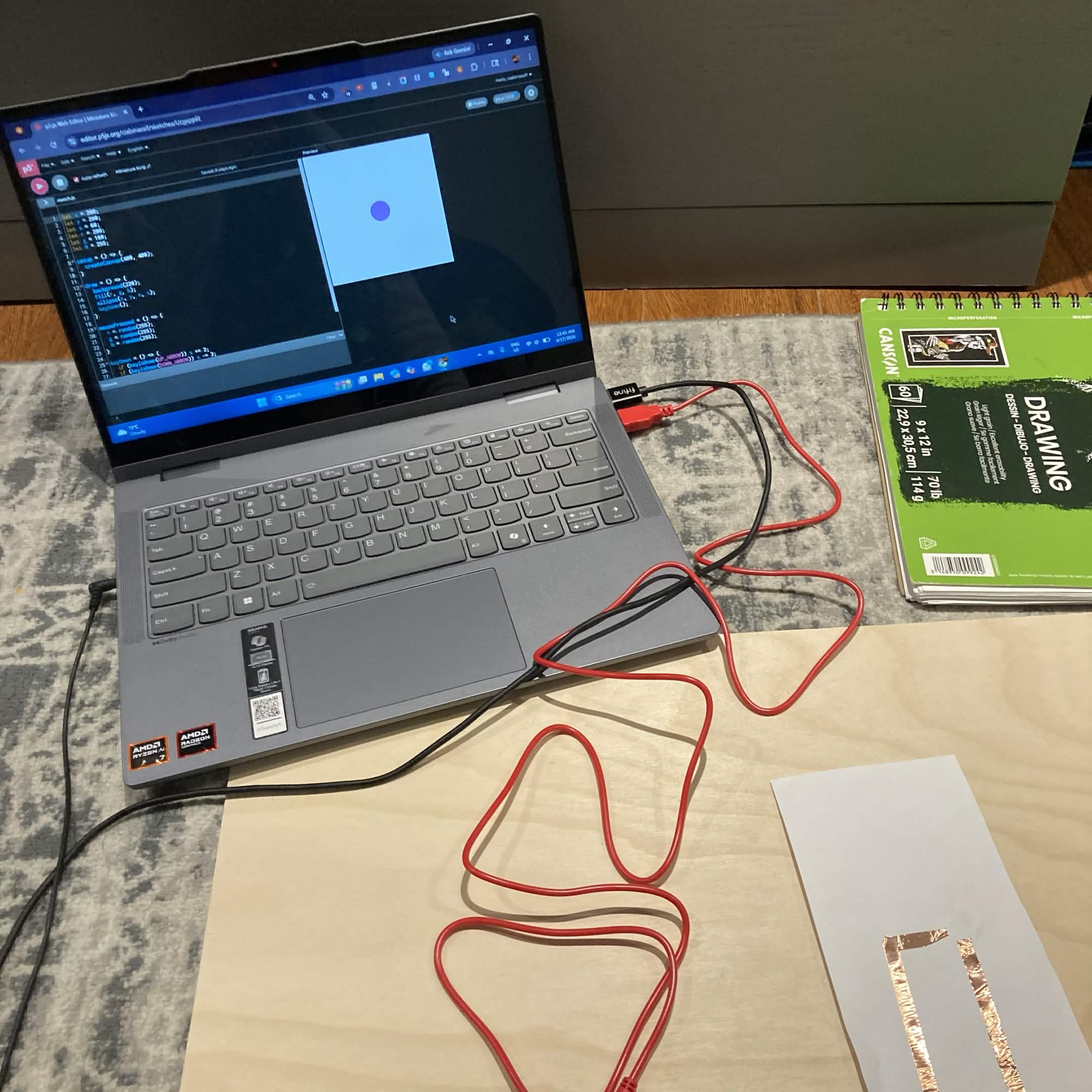
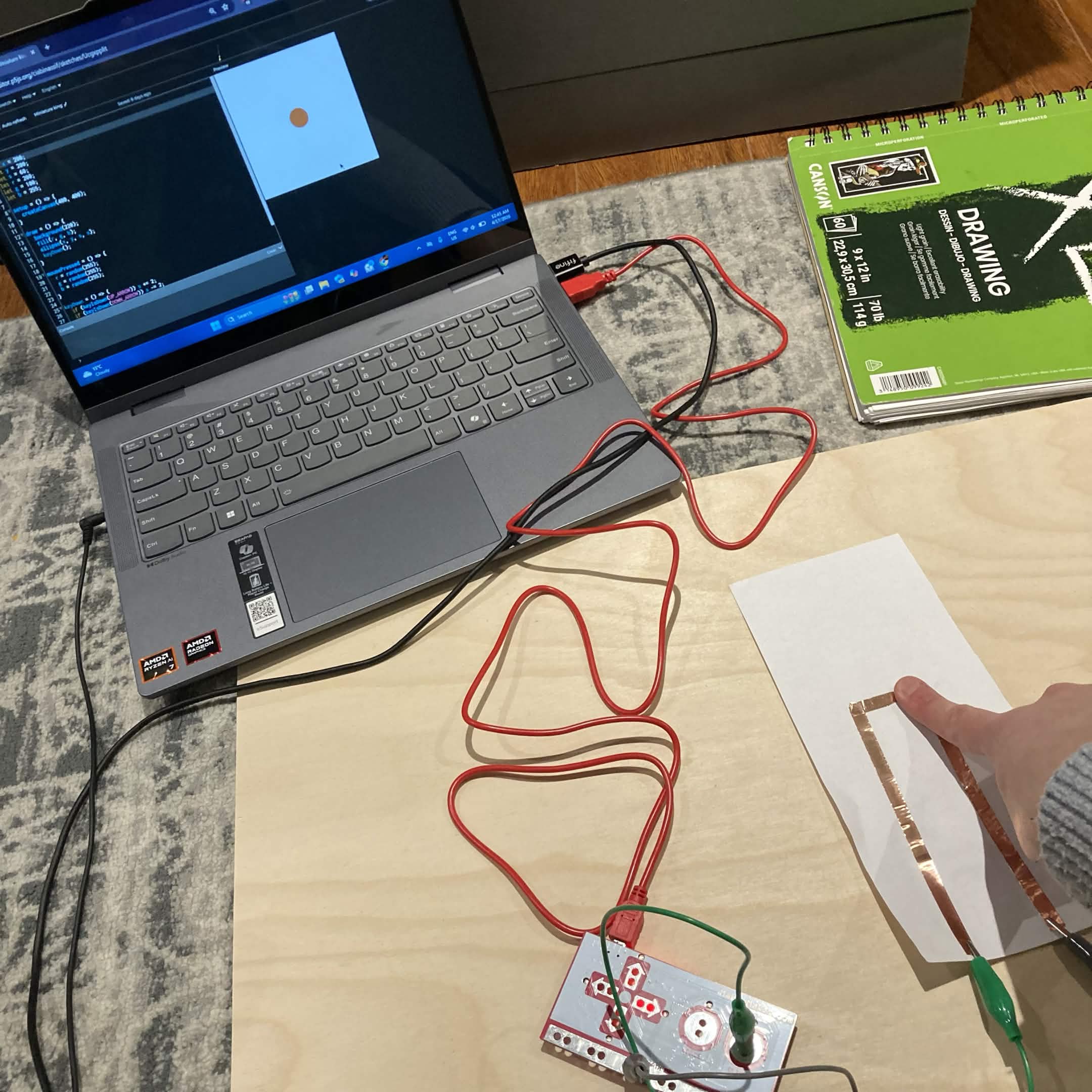
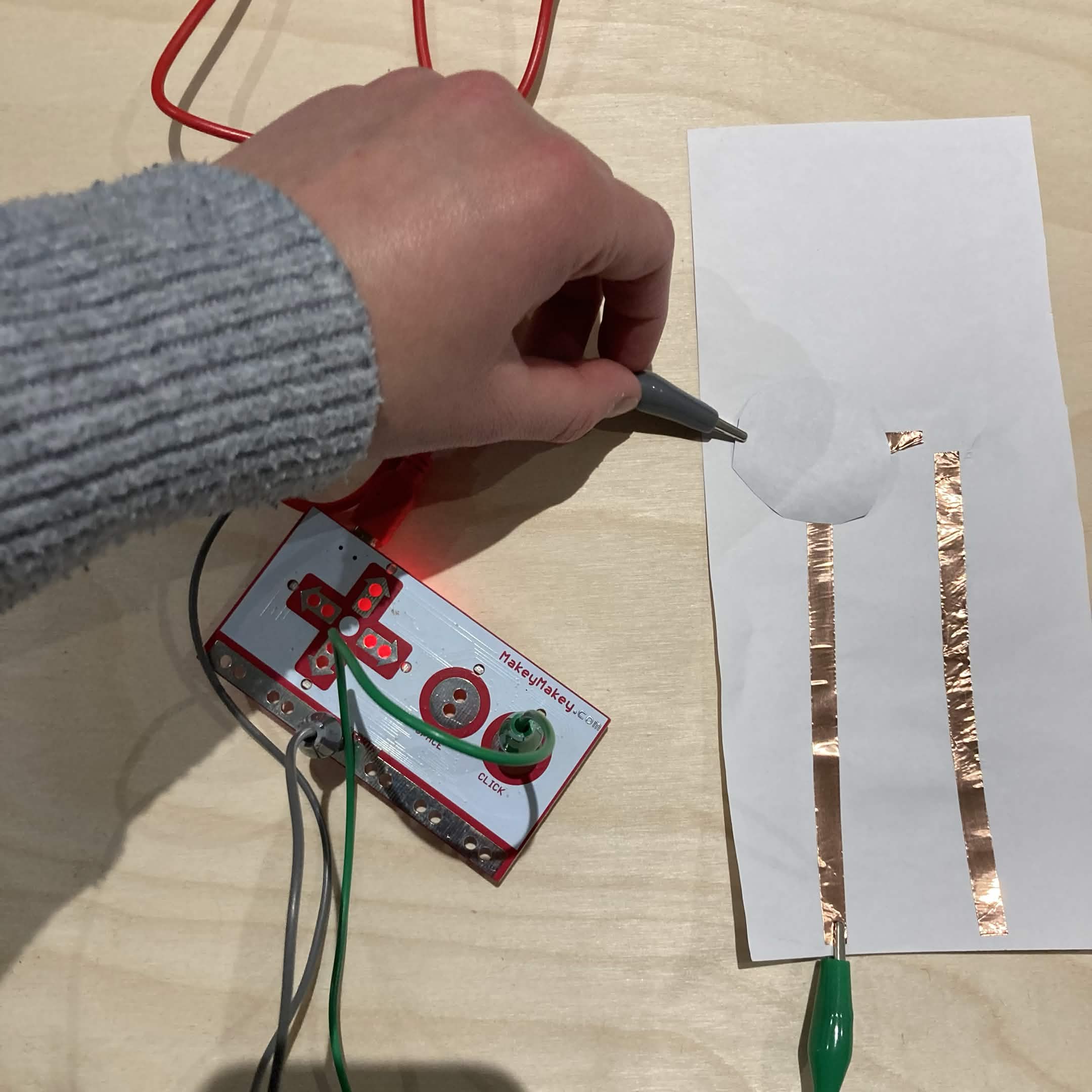
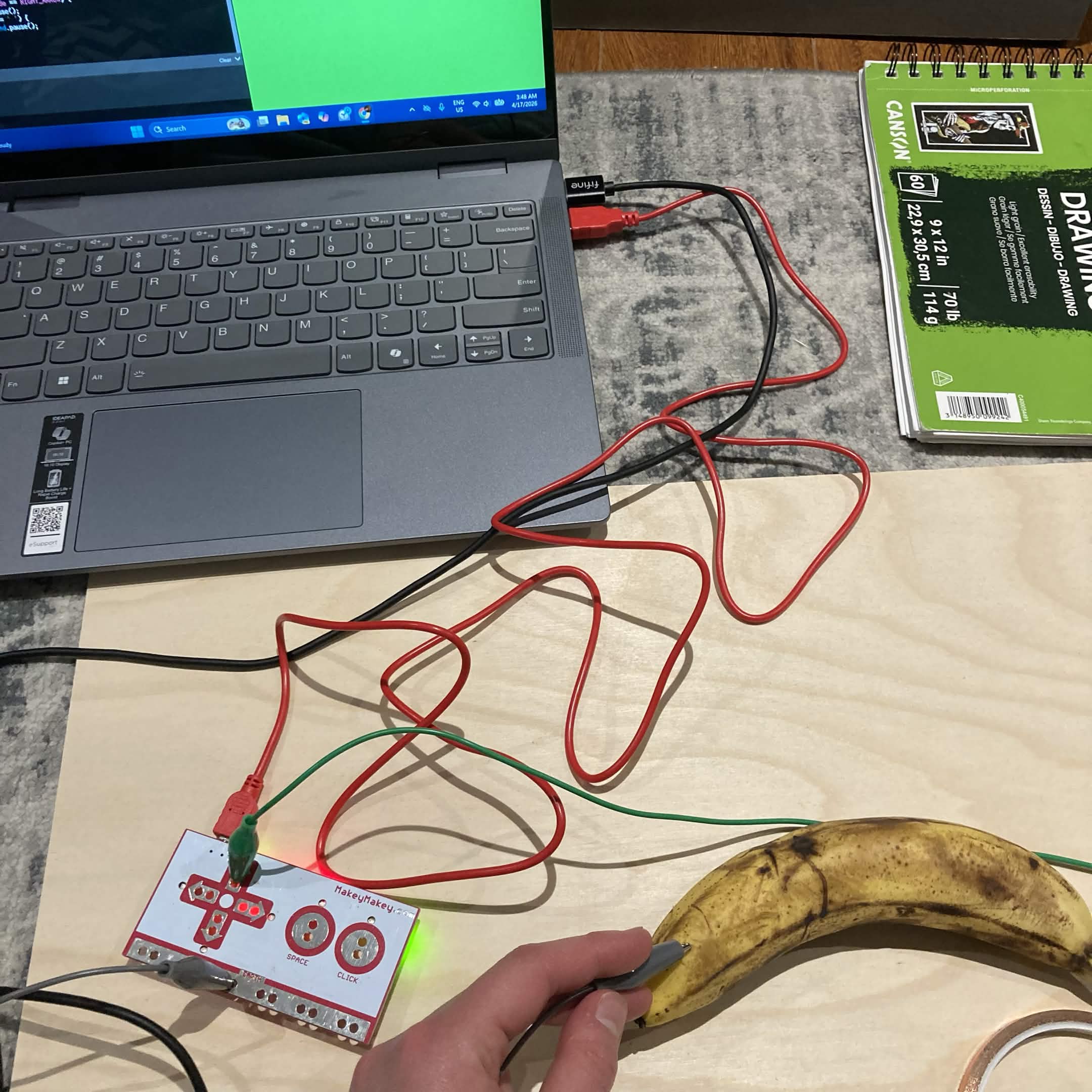
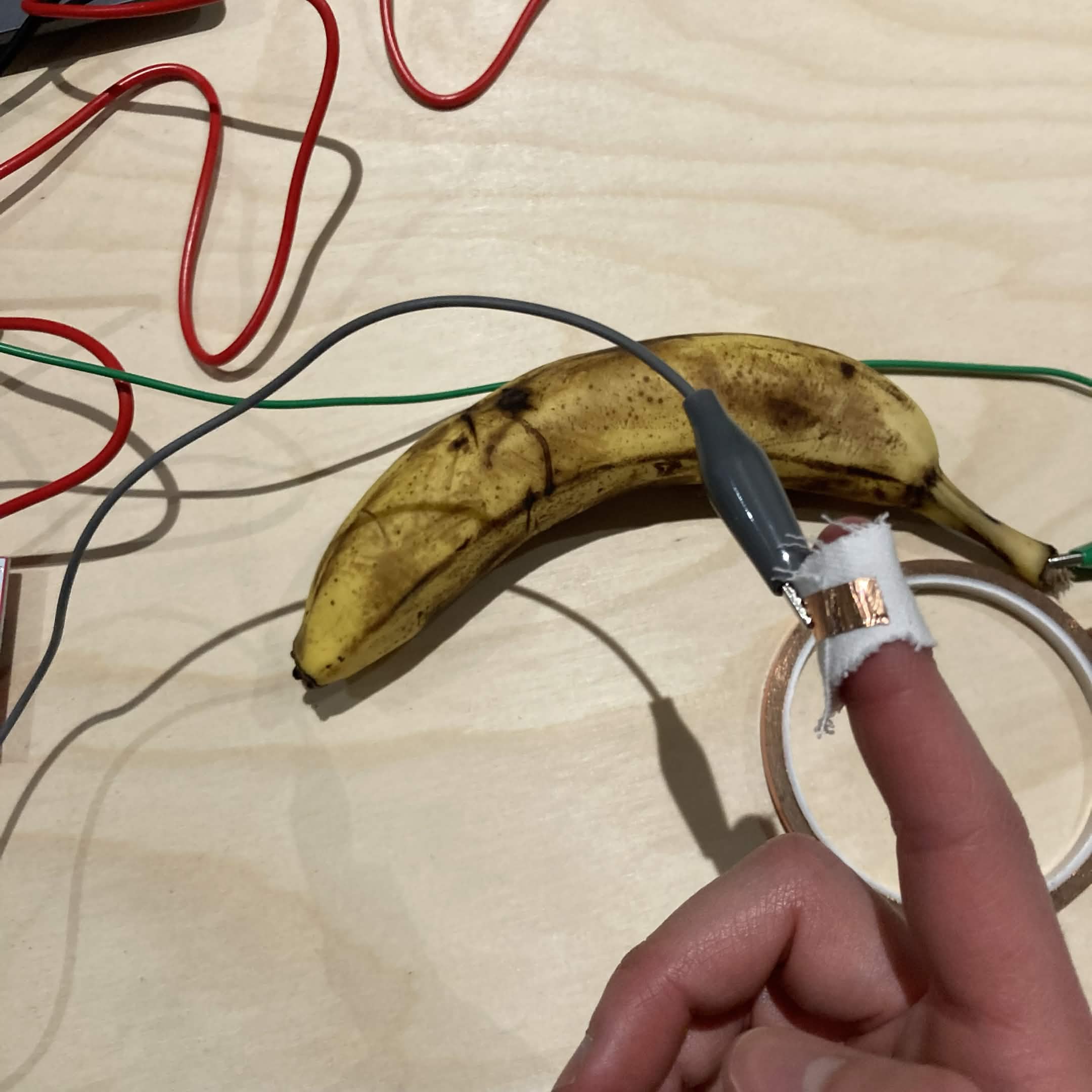
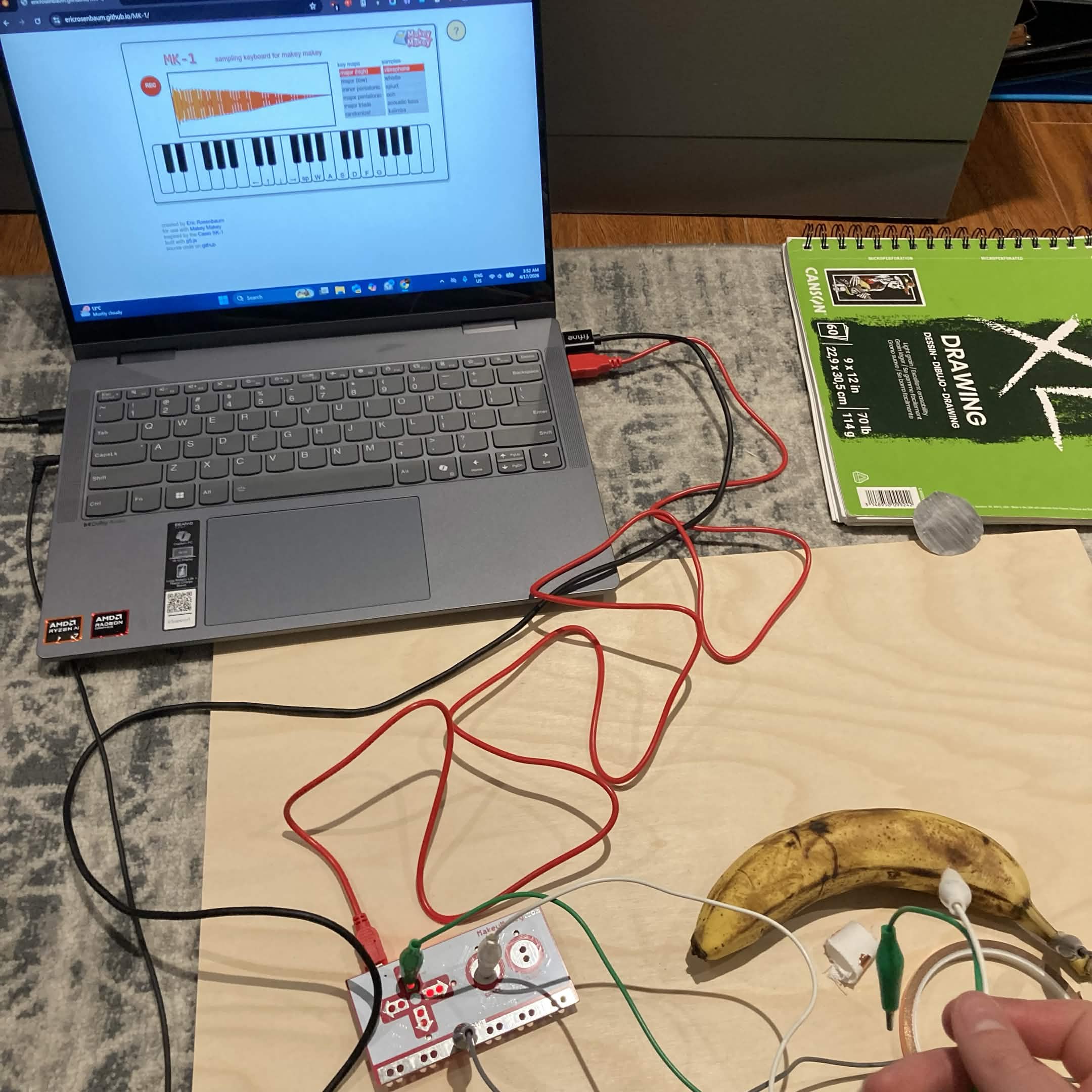
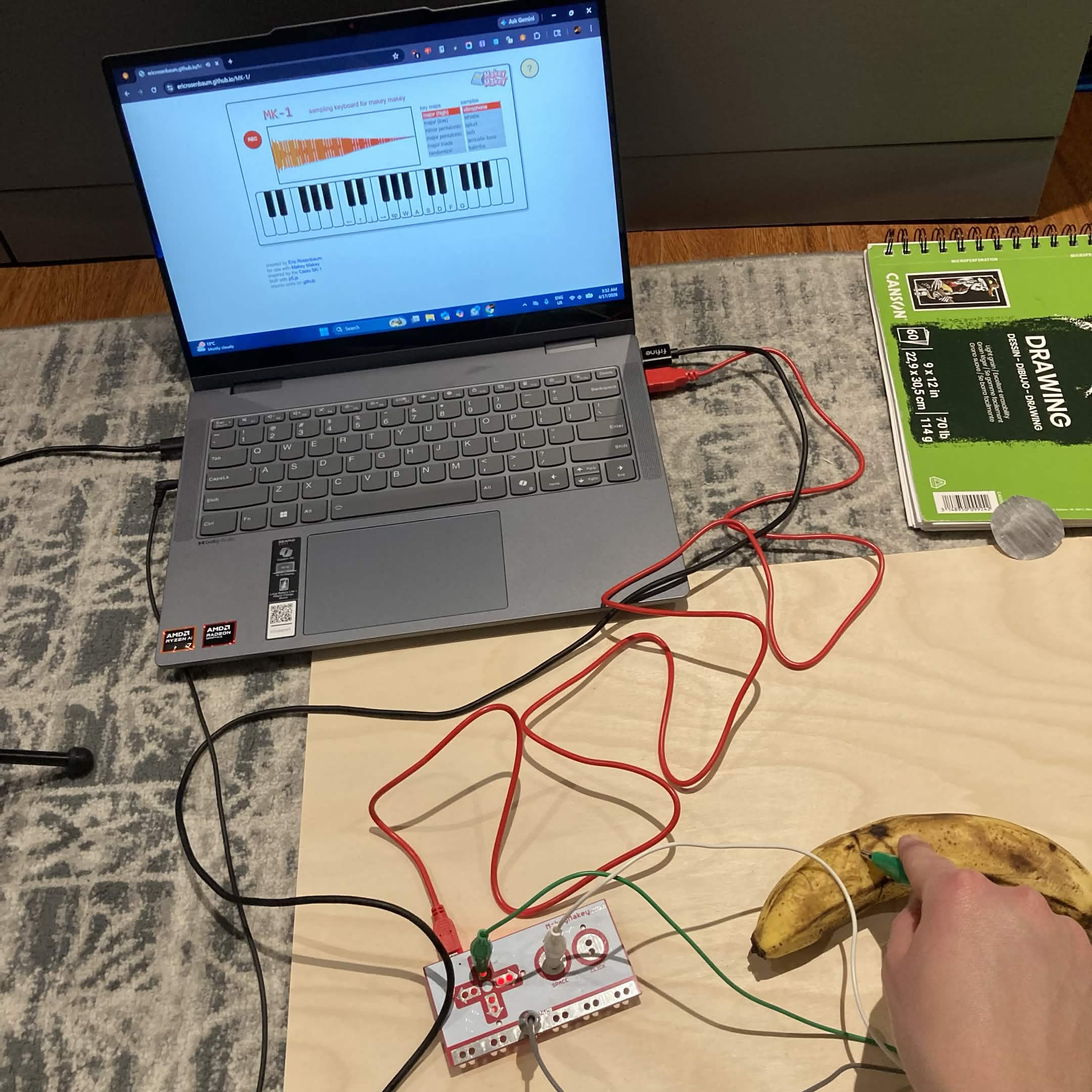
Graphite circle I cut out to use as a conductive item Some graphite lines I made to use for an art circuit A simple circuit with copper tape I made a felt switch that can be folded to act as a button A parallel copper tape circuit that can be used with multiple inputs This is the parallel copper tape circuit plugged into the Makey Makey This copper tape circuit requires the user to place their finger on the corner to connect both lines of tape and trigger the Makey Makey function Felt switch connected to the Makey Makey The wearable finger circuits connected to the Makey Makey alligator clips Graphite circuit that can be connected using your hand or another conductive item to trigger the Makey Makey functions. Testing my Makey Makey code from the previous exercise. Testing the second function on the Makey Makey to make the circle in the sketch vibrate. Testing function one of the Makey Makey on another code example that includes all four arrow inputs. Testing out the second input Testing out the third input Testing out the fourth arrow input to change the circle colour in the code Testing out the graphite input strength on the Makey Makey to make the circle move from side to side Testing out the second graphite line to move the circle in the other direction This is the simple copper circuit connected to the colour changing code. This is the colour changing code after the circuit is pressed down on and triggered. Using the graphite circle to connect the circuit and trigger the Makey Makey Trying the banana piano community example I tried combining the finger circuit, but there was interference because the Makey Makey would trigger when it wasn't supposed to Makey Makey piano example with alligator clips and banana playing the piano note using the alligator clip on the banana

Project 3


Final Project 3 Design

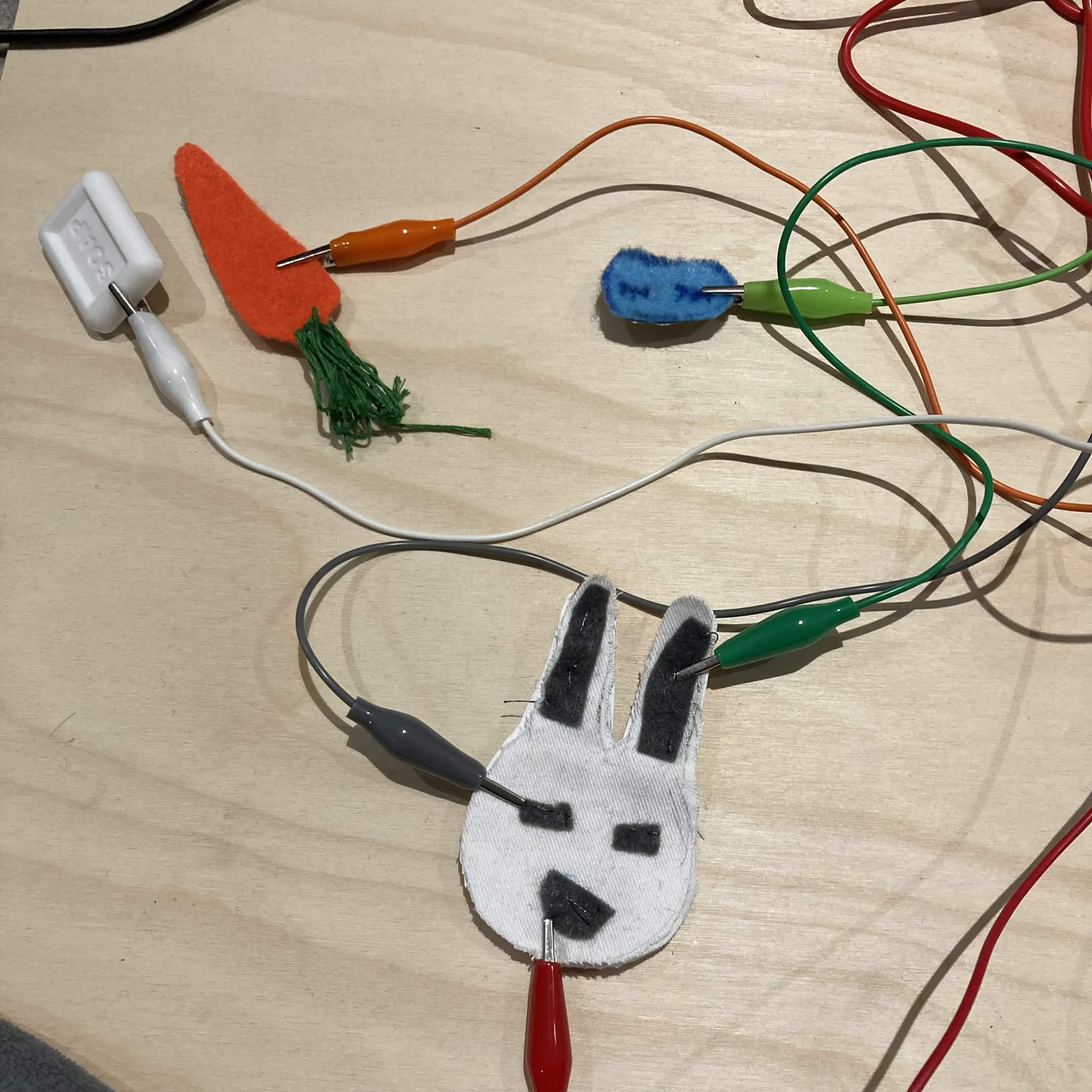
Physical Makey Makey Components
test2Lorem ipsum dolor sit amet, consectetur adipiscing elit
×

Powered by w3.css